Installing pfSense as the Gateway for My Active Directory Lab
Installing pfSense in VirtualBox, assigning its three interfaces, and proving that a client on the lab network reaches the internet through it, including the mistakes I made along the way.
Overview
This is the second post in my Hybrid Identity Detection Lab project. In the first post I designed a two-zone network with a firewall between my attacker machine and an Active Directory domain.
This post builds the firewall. By the end, pfSense is installed, has an interface in each zone, and a Windows 11 client on the lab network reaches the internet through it.
Environment
- Host: Arch Linux, 16 GB RAM, VirtualBox 7.2
- Firewall VM:
fw01, pfSense CE 2.9.0, 2 GB RAM, 16 GB disk - Client VM:
win11on the internal networkadlab-net - Domain controller VM:
DC01, powered off for this post
fw01 has three network adapters, and the order matters because pfSense names interfaces in the order VirtualBox presents them:
| Adapter | VirtualBox mode | pfSense name | Role |
|---|---|---|---|
| 1 | NAT | em0 | WAN |
| 2 | Internal Network adlab-net | em1 | LAN |
| 3 | Host-Only vboxnet1 | em2 | OPT1 (attacker side) |
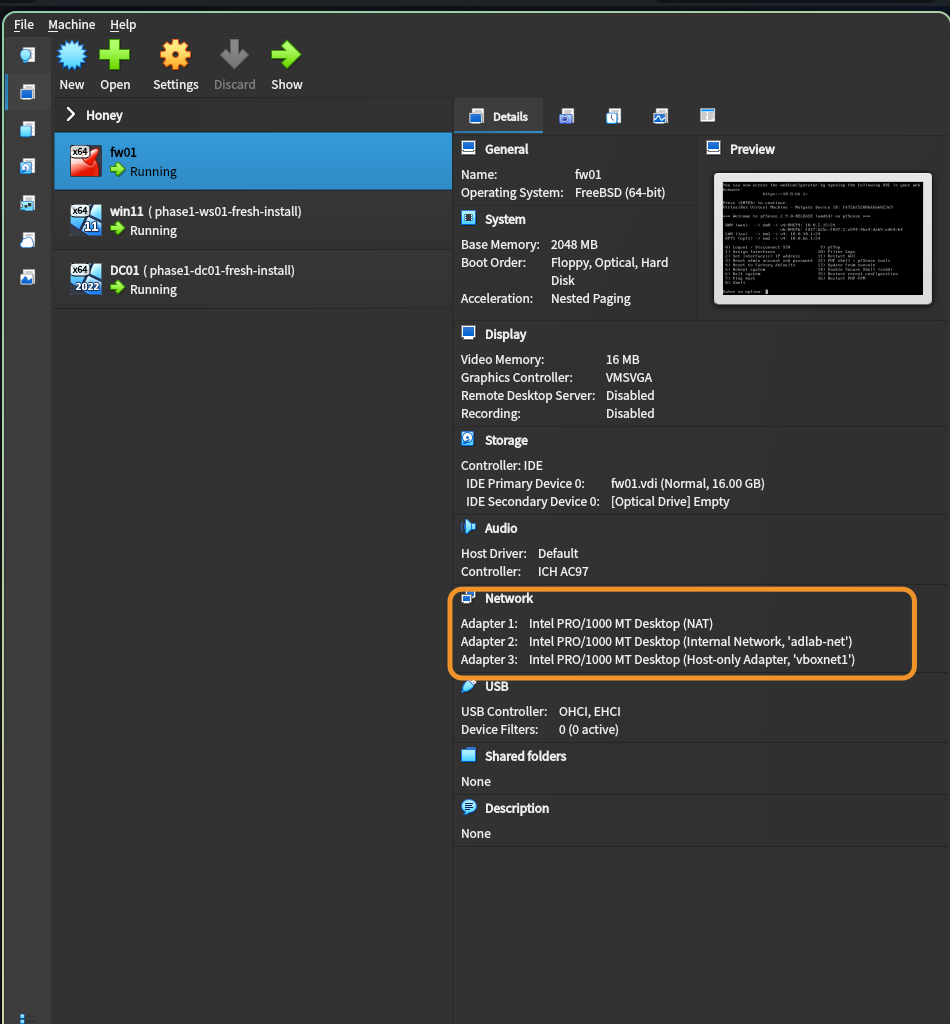
fw01 with its three adapters
I confirmed which interface was which by matching the MAC addresses in the installer against the ones VirtualBox shows for each adapter, instead of trusting the order.
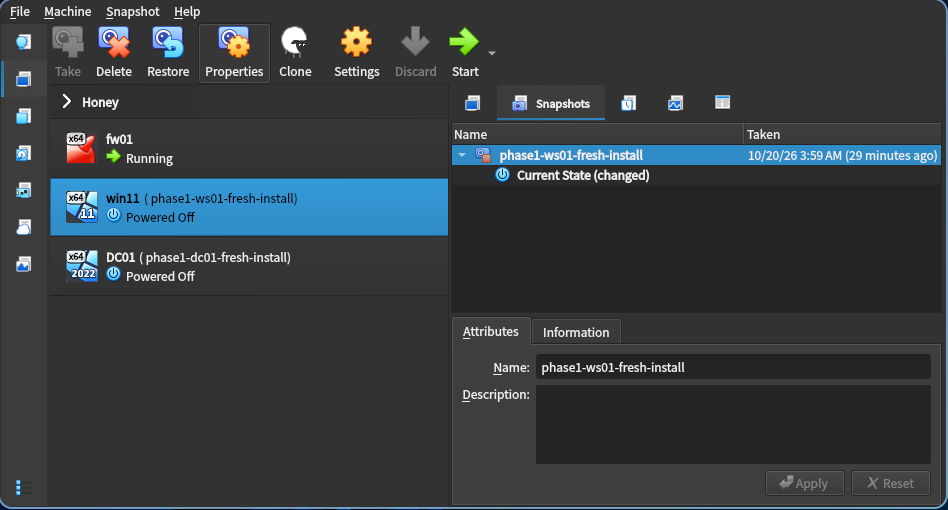 The three lab VMs. Each Windows VM has a fresh-install snapshot.
Step 0: Preparing the host
My Arch host is the attacker, so it has to sit on a virtual network with the firewall. VirtualBox on Linux only allows Host-Only ranges that are listed in /etc/vbox/networks.conf, so I appended the attacker range and kept the existing line used by another lab:
1
echo '* 10.0.66.0/24' | sudo tee -a /etc/vbox/networks.conf
 The allowed Host-Only ranges
Then I created a new Host-Only adapter and gave it the attacker address, leaving the existing vboxnet0 untouched because other VMs use it:
1
2
VBoxManage hostonlyif create
VBoxManage hostonlyif ipconfig vboxnet1 --ip 10.0.66.2 --netmask 255.255.255.0
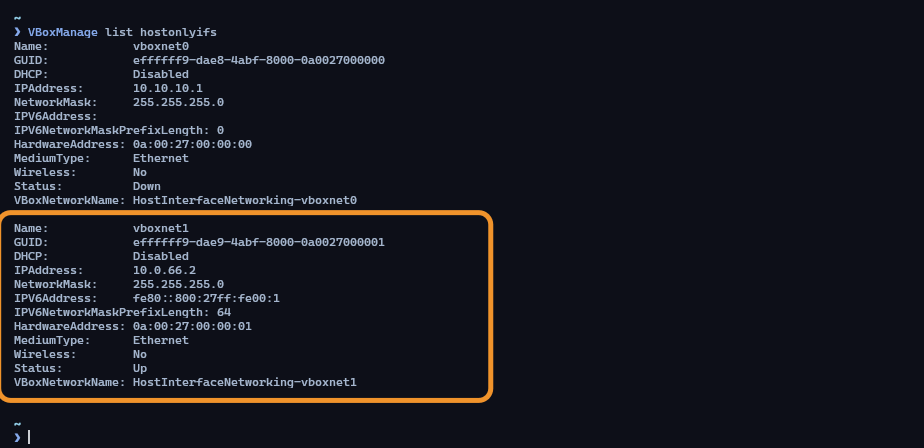
vboxnet1 at 10.0.66.2/24 with DHCP disabled
Step 1: Installing pfSense
I used Netgate’s installer image, which downloads pfSense during the install. I chose pfSense CE (the free edition), ZFS with a single-disk stripe, and the 2.9.0 stable release.
On the installer’s LAN screen I replaced the default 192.168.1.1/24 with 10.0.10.1/24 and turned the DHCP server off, because the domain controller will be the DHCP server. Earlier, on the WAN screen, I changed the interface mode to STATIC by accident with a hotkey, and had to cycle it back to DHCP before continuing. The letters in red in the installer menus are hotkeys, so typing one can change a value.
The first two attempts failed. The installer fetched the package catalogue and about 50 packages, then stopped with a timeout on a 29 MiB package download.
I read the log with
tail -40 /tmp/install-log.txtfrom the installer shell instead of guessing. It ended withpkg-static: Failed to fetch ... Timeout was reached.
I then tested DNS from my host. At that moment, public resolvers (1.1.1.1 and 8.8.8.8) returned no address for pkg.pfsense.org, while other sites resolved normally. I could not prove that this caused the timeouts, but it matched the symptom. A later attempt completed.
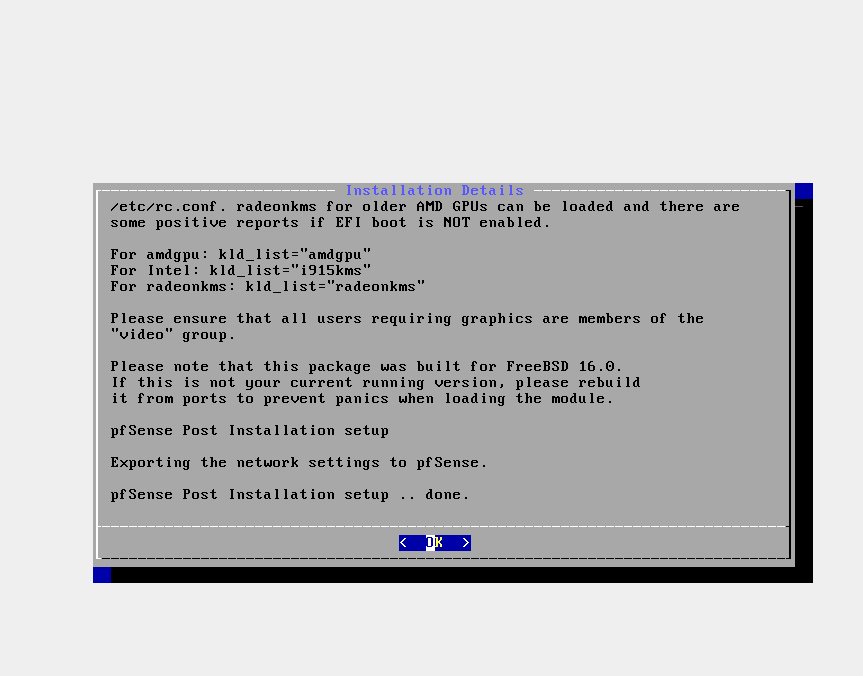 The installer finishing its post-installation setup
Step 2: The installer booted again
After the install I rebooted without removing the installer ISO, and the VM booted into the installer a second time. The installed system on the disk was fine. I powered the VM off, removed the ISO from the virtual optical drive, and started it again.
Lesson: eject the install media before the first reboot. Setting the boot order to put the hard disk first also prevents this.
Step 3: Assigning the three interfaces
The installer only handles WAN and LAN. After the first boot, the console menu showed WAN on DHCP (10.0.2.15, VirtualBox’s NAT address) and LAN at 10.0.10.1/24, which I set during the install.
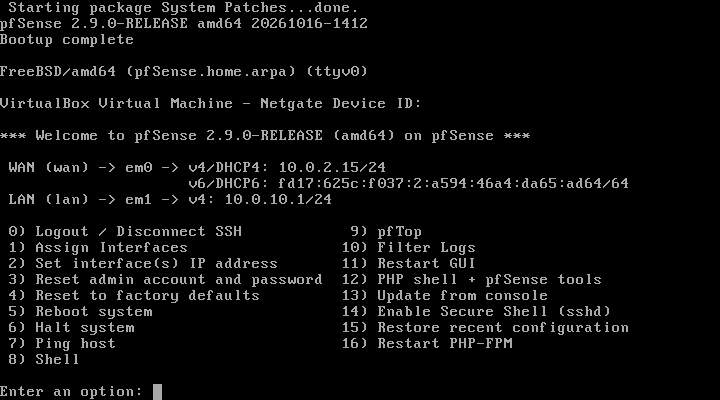 pfSense console after first boot. OPT1 does not exist yet.
I added the attacker-side interface with option 1 (Assign Interfaces), choosing em2 for OPT1, and then option 2 (Set interface IP address) to give it 10.0.66.1/24 with no DHCP and no upstream gateway.
| Setting | Value | Reason |
|---|---|---|
| IPv4 mode | static | A gateway needs a fixed address. |
| Address | 10.0.66.1/24 | Matches the attacker subnet in the design. |
| Upstream gateway | none | Only WAN leads to the internet. |
| DHCP on OPT1 | off | The Arch host has a static address. |
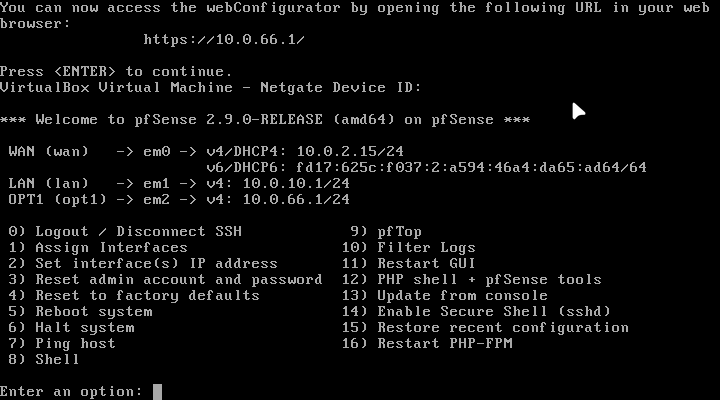 All three interfaces configured: WAN, LAN and OPT1
The web interface confirms the assignment, matching each interface to its MAC address:
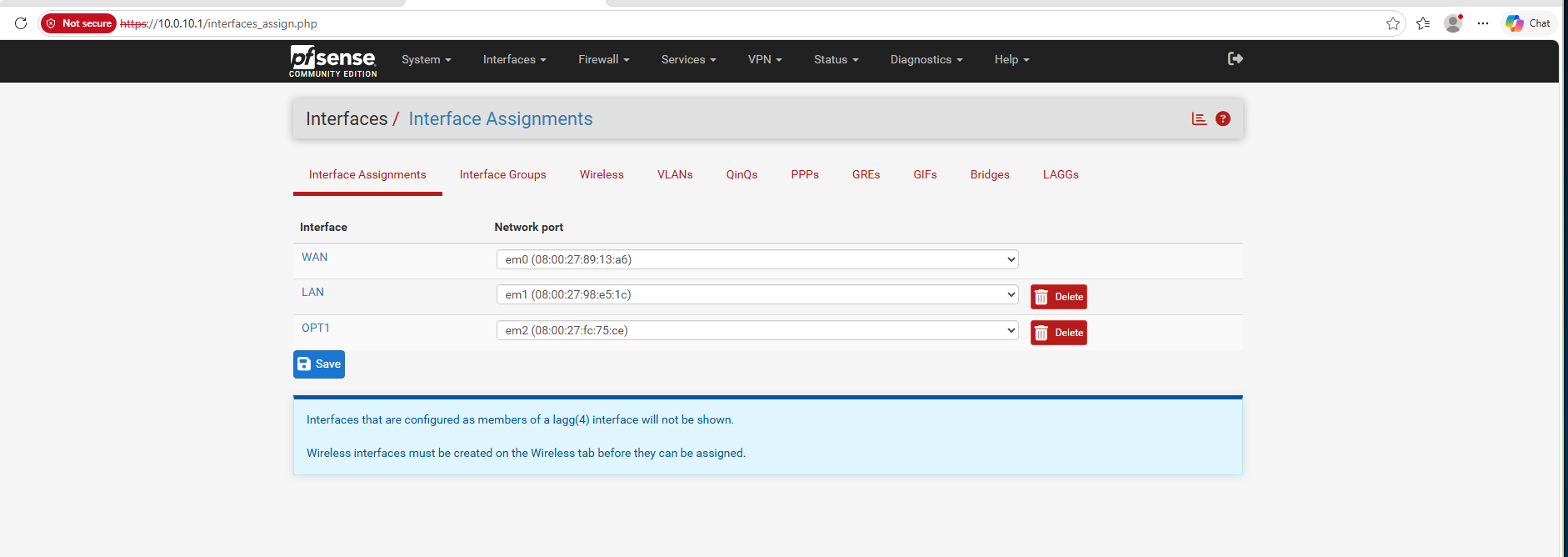 Interface assignments: em0 WAN, em1 LAN, em2 OPT1
Step 4: Reaching the web interface
pfSense blocks everything arriving on a new interface until a rule allows it, so the web interface was not reachable from the attacker side yet. The LAN side has a built-in exception, so I used the Windows 11 client.
The client had no address, so I gave it a temporary static one on adlab-net: 10.0.10.50/24, gateway 10.0.10.1, DNS 10.0.10.1.
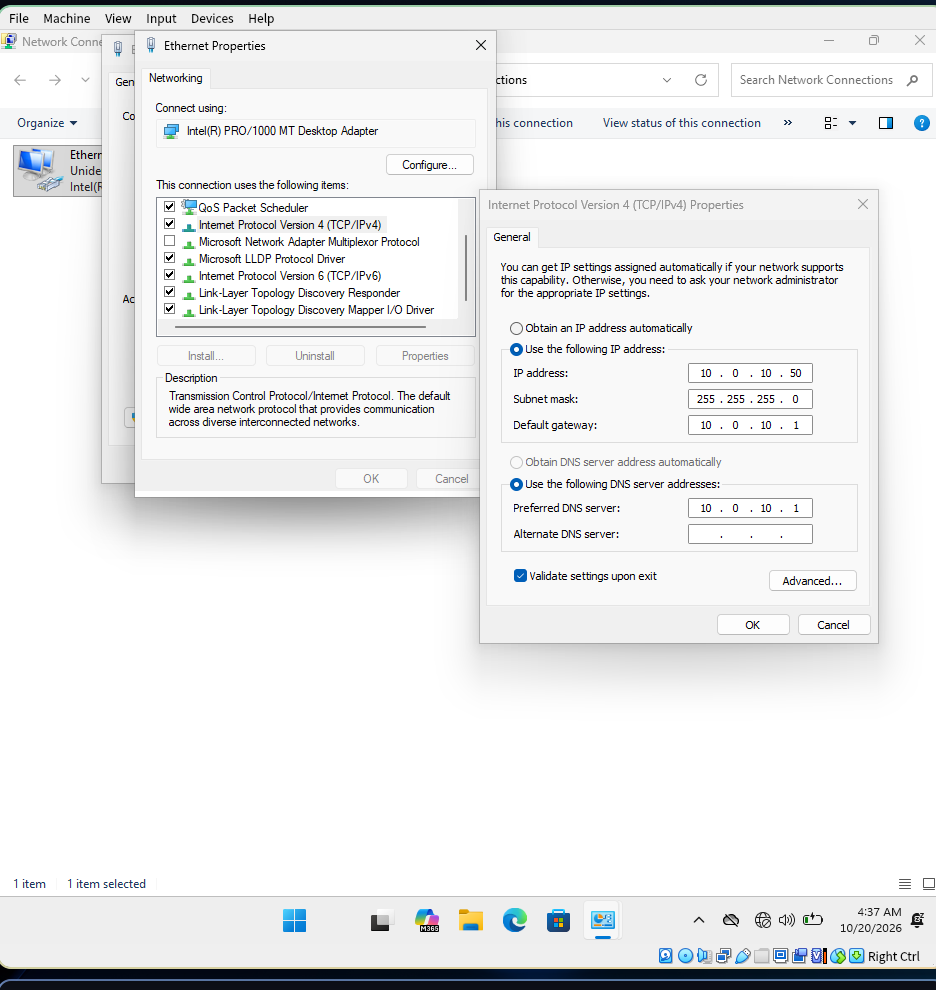 Temporary static address on the Windows 11 client
The browser first said it could not reach https://10.0.10.1. I had typed the settings but never clicked OK to save them. Once saved, the login page loaded.
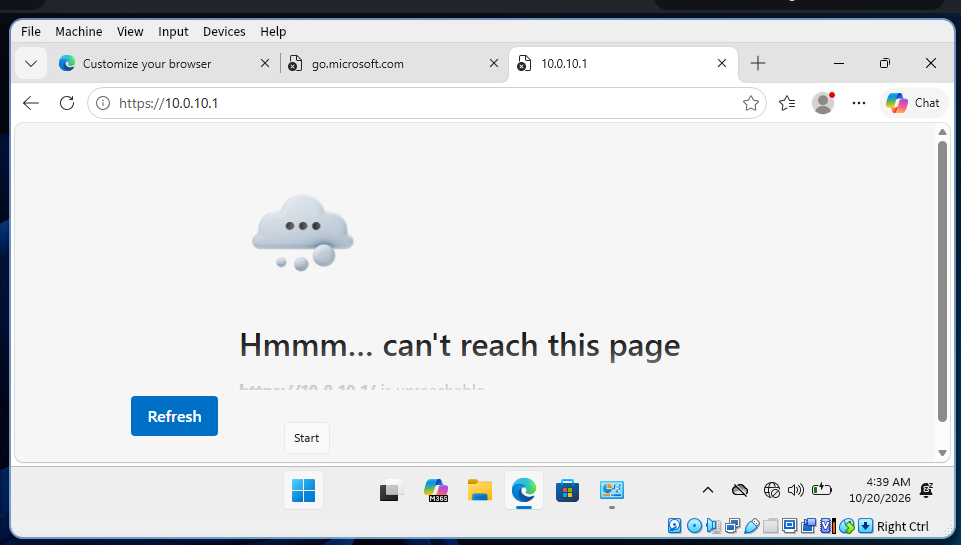 The error caused by unsaved network settings
Reading it layer by layer is a habit worth keeping: address configured, link-layer neighbour, ping, then the port. The problem was at the very first layer.
I logged in with the default credentials, which pfSense warns about, and changed the password during the setup wizard. I set the hostname to fw01, the domain to lab.local (changed later, see below), the timezone to Africa/Nairobi and the WAN type to DHCP.
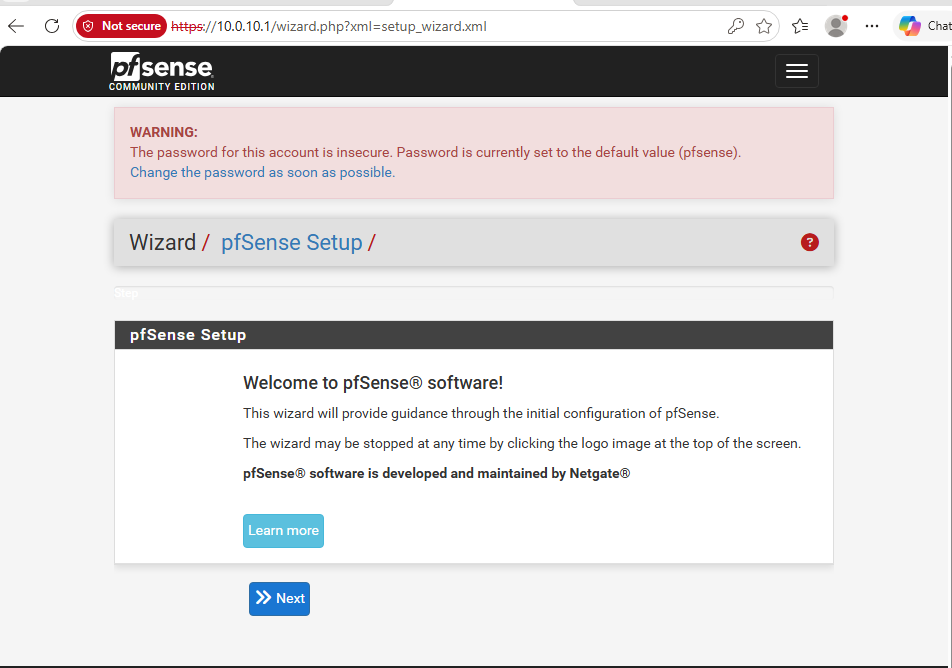 The pfSense setup wizard
Verification
From the Windows 11 client:
1
2
ping 8.8.8.8
nslookup example.com
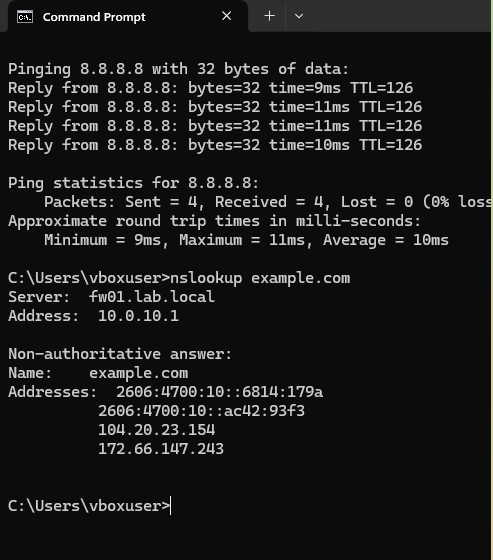 Replies from 8.8.8.8, and DNS answered by fw01
- The ping replies have TTL 126. Windows starts at 128 and each router subtracts one, so the packets crossed two hops: pfSense and VirtualBox’s NAT.
nslookupshowsfw01at10.0.10.1answering (the domain was stilllab.localwhen I took this screenshot), so pfSense’s DNS resolver serves the lab.
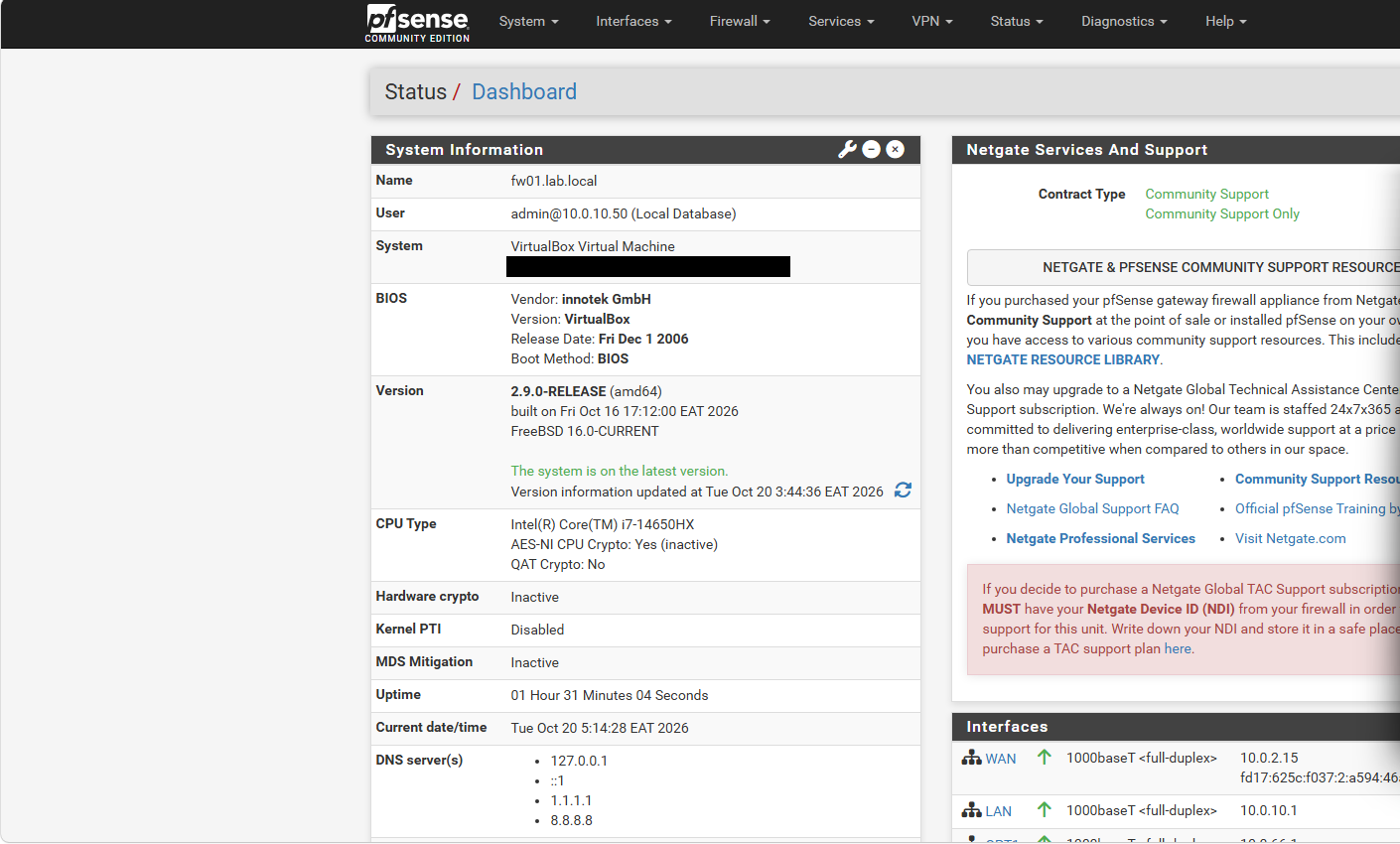
Dashboard: version 2.9.0, all three interfaces up
DHCP is disabled on pfSense’s LAN, because the domain controller will be the DHCP server and two servers on one network would hand out conflicting settings:
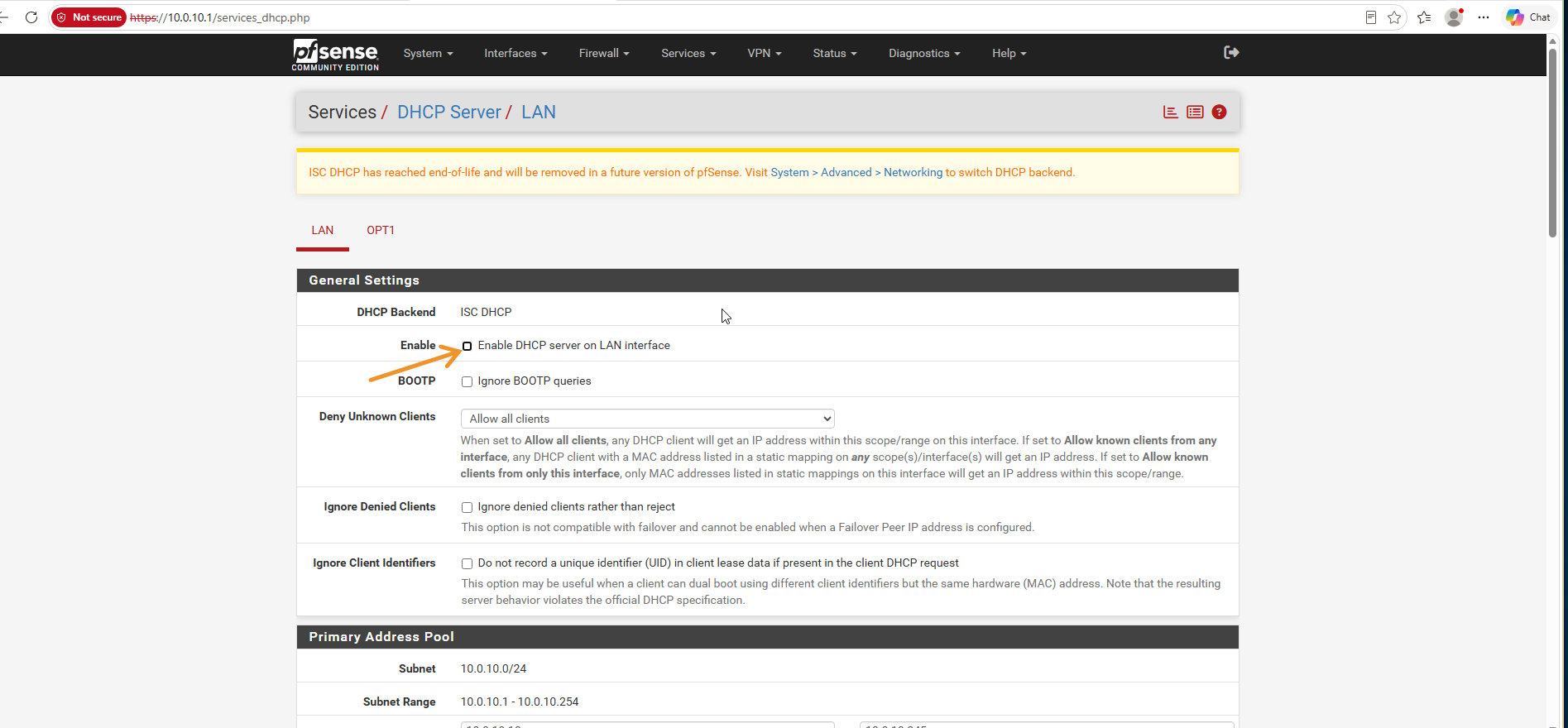 “Enable DHCP server on LAN interface” is unticked
Two changes after the first run
Reviewing the settings pages afterwards turned up two things I wanted to fix.
The domain name. pfSense’s General Setup page warns against ending a domain in .local, because that suffix is used for mDNS and can cause name resolution problems on Windows. Microsoft also advises against it for Active Directory. The forest name is hard to change once the domain controller exists, so I chose lab.internal now, which is reserved for private use, and applied it to pfSense.
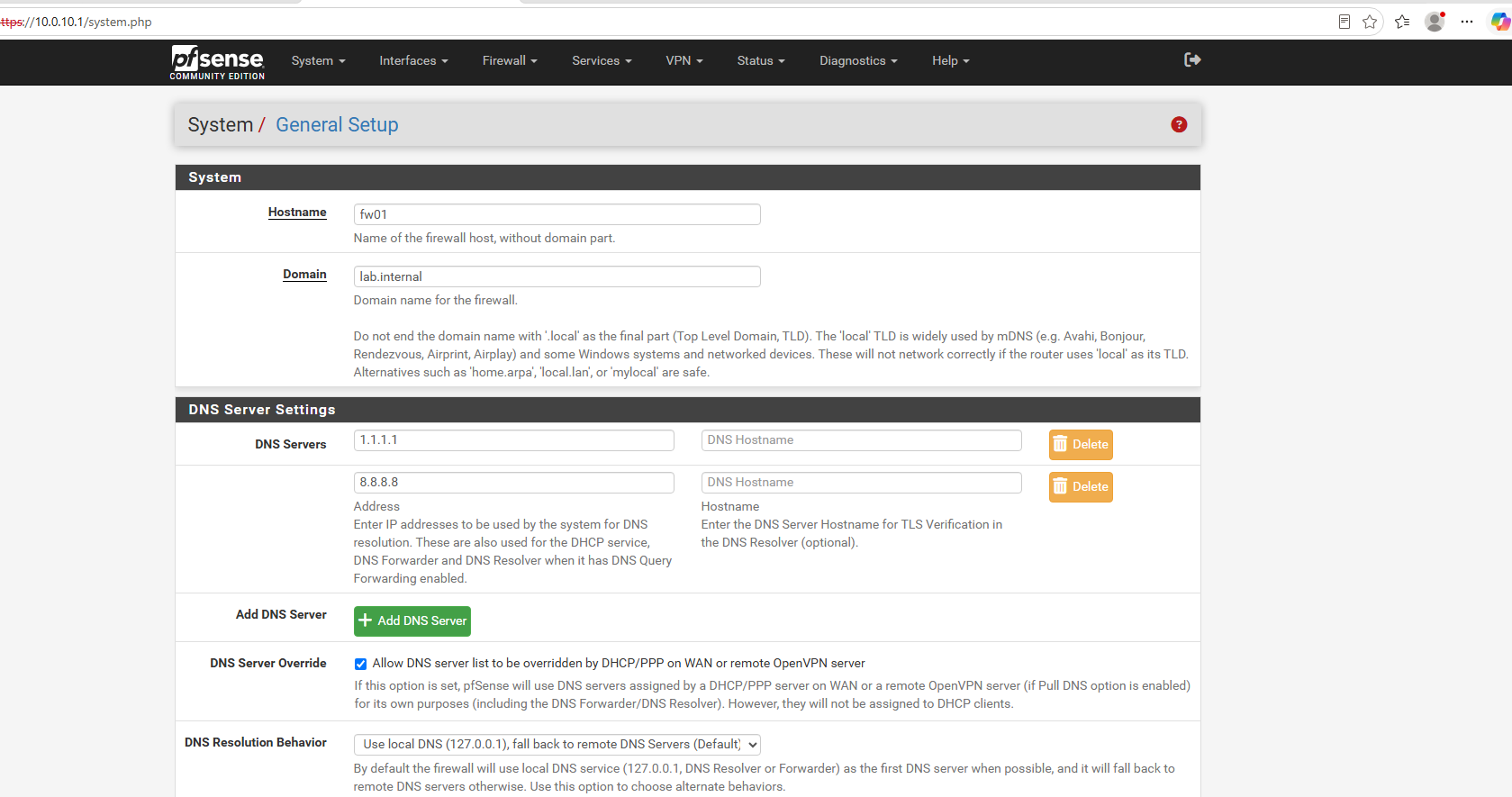 General Setup with the hostname
 fw01 and the domain lab.internal
The WAN reserved-network options. I unticked “Block private networks”, because the WAN sits behind VirtualBox’s NAT and its gateway and DNS addresses are private. “Block bogon networks” was also unticked, which is not what I wanted, so I ticked it again. It is standard hygiene for an external interface and costs nothing here.
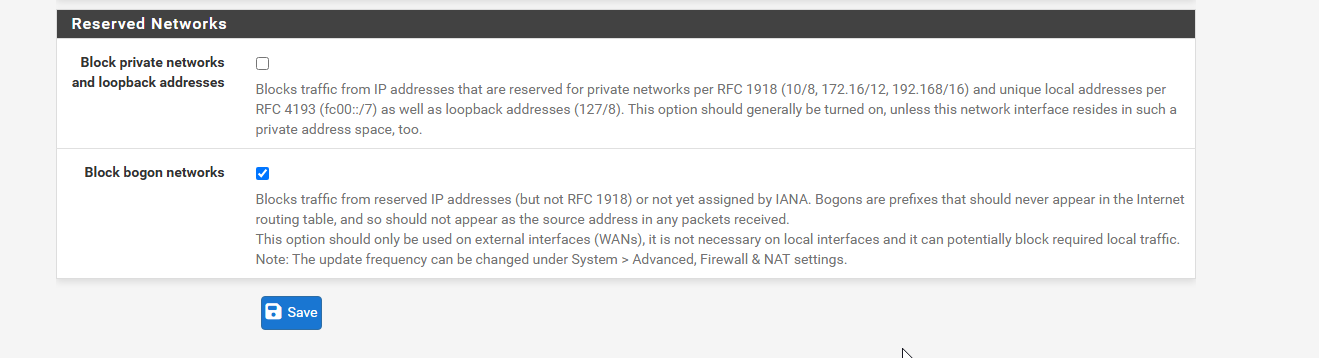 Private networks allowed on the WAN, bogon networks blocked
Outcome
- pfSense CE 2.9.0 installed on
fw01with WAN, LAN and OPT1 - A client on
adlab-netreaches the internet through the firewall, with DNS served by pfSense - The Active Directory domain name decided before the domain controller exists:
lab.internal - Fresh-install snapshots of both Windows VMs before any change to them
What I would do differently
- Eject install media before the first reboot.
- Save the network settings dialog before testing, and test one layer at a time.
- Take screenshots as I go. Some of my early installer screenshots were lost before I saved them anywhere permanent.
Next
Adding the firewall rule and the host route so my Arch machine can reach the lab zone through pfSense, then confirming the traffic appears in the firewall log.