Creating, Breaking and Fixing Active Directory Objects by Hand
One OU, one user and one group created manually in PowerShell, then edited, moved, deleted and disabled, with every error I hit and the Windows events each action left behind.
Overview
This is the sixth post in my Hybrid Identity Detection Lab project. In the last post I joined a Windows 11 client to lab.internal. The next job in the plan is a script that builds five organisational units and 150 users. I decided not to write it first.
If I paste a script I don’t understand, I can’t debug it when it breaks, and I can’t explain it in an interview. So I did the whole life of one test account by hand: create, edit, move, delete, disable, enable. I made mistakes on purpose and by accident, and I read the events each action left in the Security log, because those are the events my detections will use later.
All commands were run on DC01 as LAB\Administrator, in an elevated PowerShell. This post is not finished: a few exercises are still to do, listed at the end.
Step 1: Look before you change anything
1
2
3
Get-ADDomain | Select DistinguishedName, NetBIOSName, DomainMode
Get-ADOrganizationalUnit -Filter * | Select Name, DistinguishedName
Get-ADUser -Filter * | Select Name, SamAccountName, Enabled
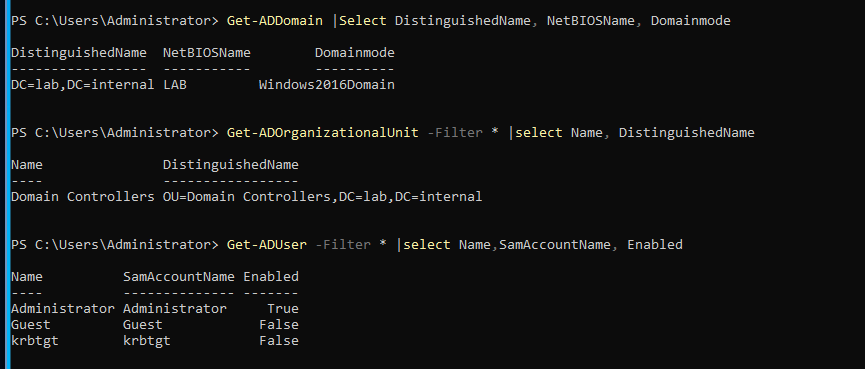 The starting point: one OU, Domain Controllers, and three built-in users
- The domain is
DC=lab,DC=internal, with NetBIOS nameLAB.Windows2016Domainis the default functional level on Server 2022. - The only OU is
Domain Controllers. - The users are
Administrator(enabled), andGuestandkrbtgt(both disabled).
Knowing the baseline means every later change is visible.
Step 2: An OU, and the first mistake
An organisational unit (OU) is a folder inside the domain. Users and computers go in it so they can be managed together, for example by attaching Group Policy.
1
New-ADOrganizationalUnit -Name "Lab_test" -Path "DC=lab,DC=internal"
The command printed nothing, which is how PowerShell reports success here. My check of it failed:
 “A positional parameter cannot be found that accepts argument ‘System.Object[]’“
The cause was a missing comma:
1
| select Name DistinguishedName, ProtectedFromAccidentalDeletion
Select-Object takes the property names as one comma-separated list. Without the comma, Name is the first argument and DistinguishedName, ProtectedFromAccidentalDeletion is a second one with nowhere to go. The rule I took from it: “positional parameter cannot be found” usually means a missing comma or a stray space between values.
Step 3: A user, and a password the domain refused
1
2
3
New-ADUser -Name "Test-User" -GivenName Test -Surname User -SamAccountName tuser `
  -UserPrincipalName tuser@Lab.internal -Path "OU=Lab_test,DC=lab,DC=internal" `
  -AccountPassword (Read-Host -AsSecureString "Password") -Enabled $true
Read-Host -AsSecureString asks for the password with hidden input, so it never appears in the command or the shell history.
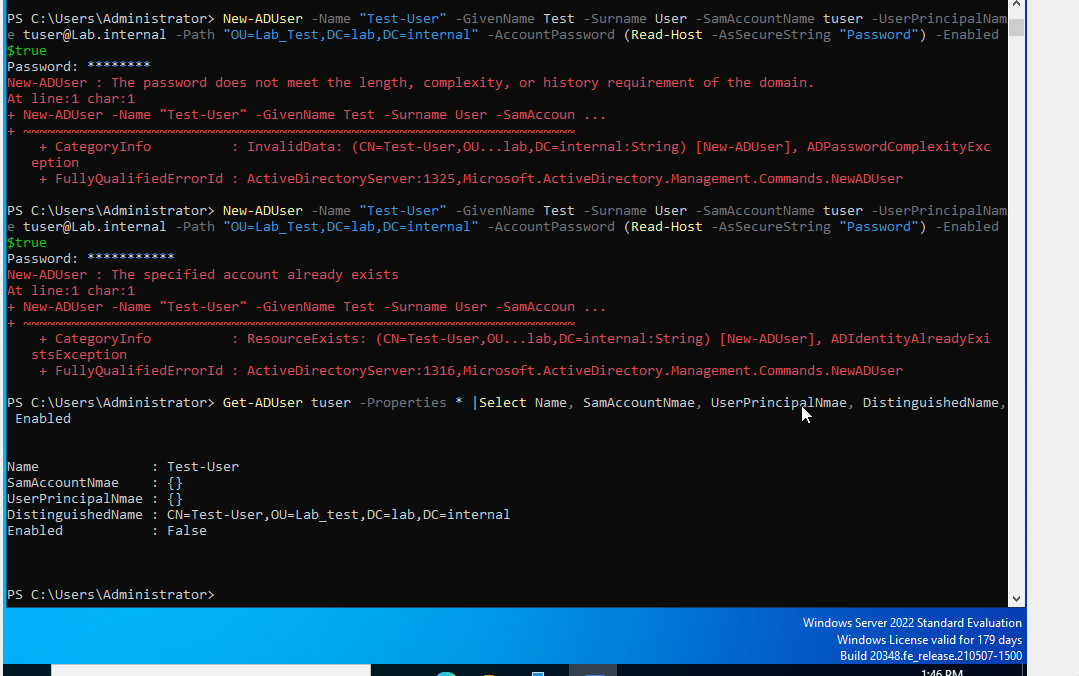 The first attempt, the second attempt, and a lookup with misspelled property names
Three separate things happened here.
1. The password was refused. The password does not meet the length, complexity, or history requirement of the domain. That message is generic: Windows uses one error for several causes. The password prompt is hidden, so I can’t say which rule my password broke.
2. The failed command still created the user. New-ADUser creates the account first and sets the password afterwards. When the password is refused, the account is left behind, disabled and without a password. The last lines of the screenshot show Enabled : False.
3. The second attempt said “The specified account already exists”. That was the leftover from the first attempt. The second attempt never reached the password check.
The blank SamAccountNmae and UserPrincipalNmae fields in the last output are typos in my command, not missing data. Select-Object does not raise an error for a property that doesn’t exist: it prints an empty value. If a field comes back blank, check the spelling first.
The fix
I didn’t recreate the account. I set the password on the one that existed and enabled it:
1
2
3
Set-ADAccountPassword -Identity tuser -Reset -NewPassword (Read-Host -AsSecureString "New password")
Enable-ADAccount -Identity tuser
Get-ADUser tuser | Select Name, SamAccountName, UserPrincipalName, DistinguishedName, Enabled
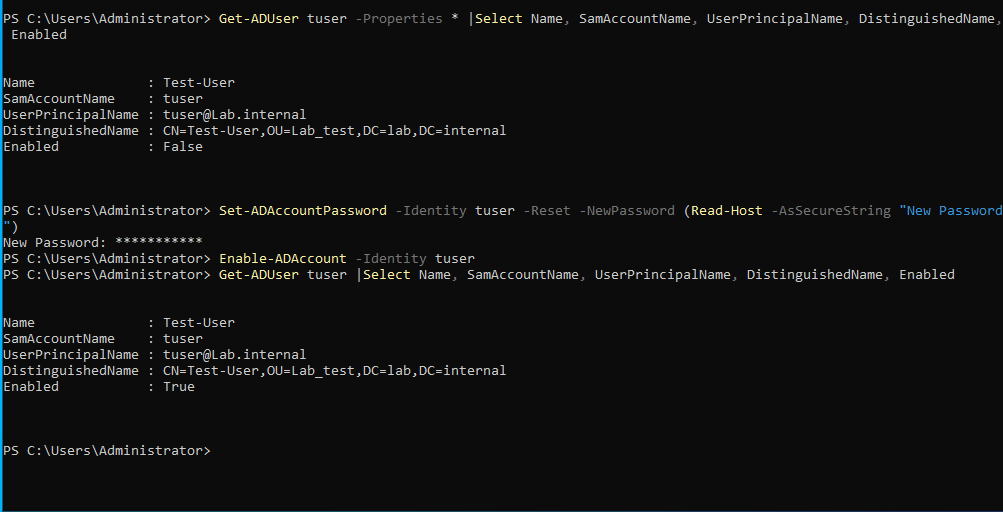 Before: Enabled False. After the reset and Enable-ADAccount: Enabled True
Step 4: A group
1
2
3
4
New-ADGroup -Name "GG-Test" -GroupScope Global -GroupCategory Security -Path "OU=Lab_test,DC=lab,DC=internal"
Add-ADGroupMember -Identity "GG-Test" -Members tuser
Get-ADGroupMember "GG-Test" | Select Name, SamAccountName
Get-ADUser tuser -Properties MemberOf | Select Name, MemberOf
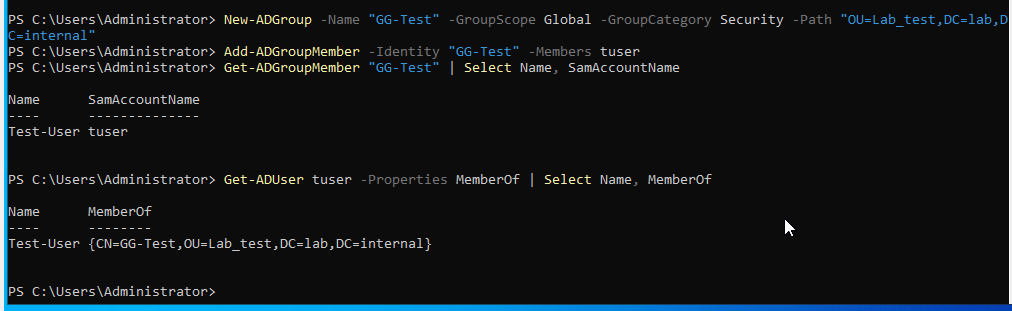 The group holds the user, and the user’s MemberOf lists the group
-GroupScope Globalis the standard type for “all the people in a department”.-GroupCategory Securitymeans the group can be given permissions. The other kind, Distribution, only works for email lists.- The
GG-prefix is a naming convention for Global Group.
The two checks show the same fact from both sides. Permissions go to groups, not to people. When someone changes department, you change their groups and the access follows.
Step 5: Logging in as the new user
On WS01 I signed in as Lab\tuser, a non-admin domain account, for the first time.
1
2
whoami
whoami /groups | Select-String "GG-Test|Domain Users"
 whoami returns lab\tuser, and LAB\GG-Test is in the login token
LAB\GG-Test is in the token with a real SID, so the OU, user and group chain works end to end.
An unresolved question: where is Domain Users?
I expected LAB\Domain Users in that list too, and it isn’t there. The full whoami /groups output has no entry for it at all. Active Directory says it should be there:
1
2
Get-ADUser tuser -Properties PrimaryGroup, PrimaryGroupID, MemberOf | Select Name, PrimaryGroup, PrimaryGroupID, MemberOf
Get-ADUser Administrator -Properties PrimaryGroup, PrimaryGroupID | Select Name, PrimaryGroup, PrimaryGroupID
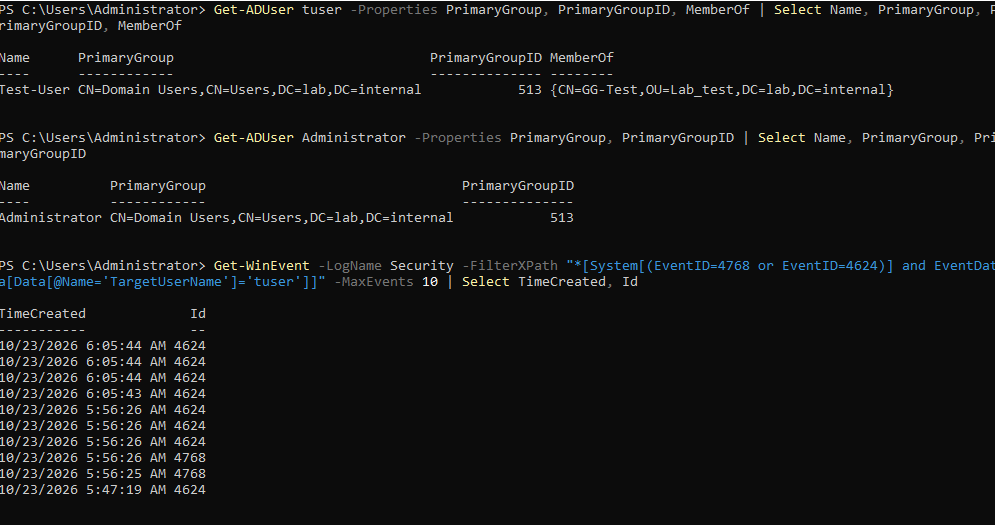 Both accounts have Domain Users as the primary group, ID 513
Both accounts show CN=Domain Users with PrimaryGroupID 513. The primary group is stored in its own field, so it doesn’t appear in MemberOf. The account looks correct in the directory and the login token still lacks the group.
I don’t know why. I had a guess, that the account created by the failed command was left in an odd state, but the directory data doesn’t support it. I haven’t tested anything that would settle it. My plan is to delete tuser, recreate it cleanly, and run whoami /groups again.
Reading a Kerberos event
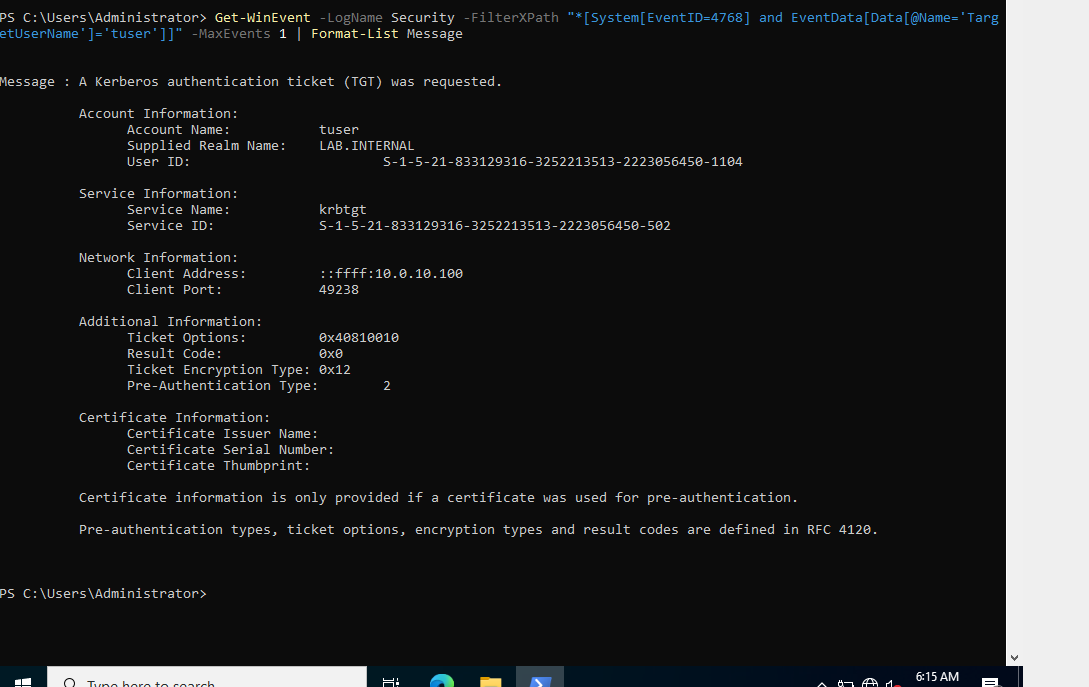
On DC01 I read the ticket request for tuser, filtering by account name:
1
Get-WinEvent -LogName Security -FilterXPath "*[System[EventID=4768] and EventData[Data[@Name='TargetUserName']='tuser']]" -MaxEvents 1 | Format-List Message
Event 4768: a Kerberos ticket-granting ticket was requested for tuser
| Field | Value | Meaning |
|---|---|---|
| Account Name | tuser | Who asked for the ticket. |
| Service Name | krbtgt | A TGT request: the first ticket, which proves the login before tickets for specific services. |
| Client Address | ::ffff:10.0.10.100 | WS01. The ::ffff: is just the IPv4 address written in IPv6 style. |
| Result Code | 0x0 | Success. |
| Ticket Encryption Type | 0x12 | AES-256. |
| Pre-Authentication Type | 2 | The client proved its identity with an encrypted timestamp, which is how a normal password login works. |
These are the fields a detection reads. Pre-authentication type 0 would mean the account allows AS-REP roasting, and encryption type 0x17 is RC4, a weaker cipher that is unusual in a lab that normally shows 0x12. A non-zero result code means failure.
Filter before you attribute
My first query only showed time and event ID:
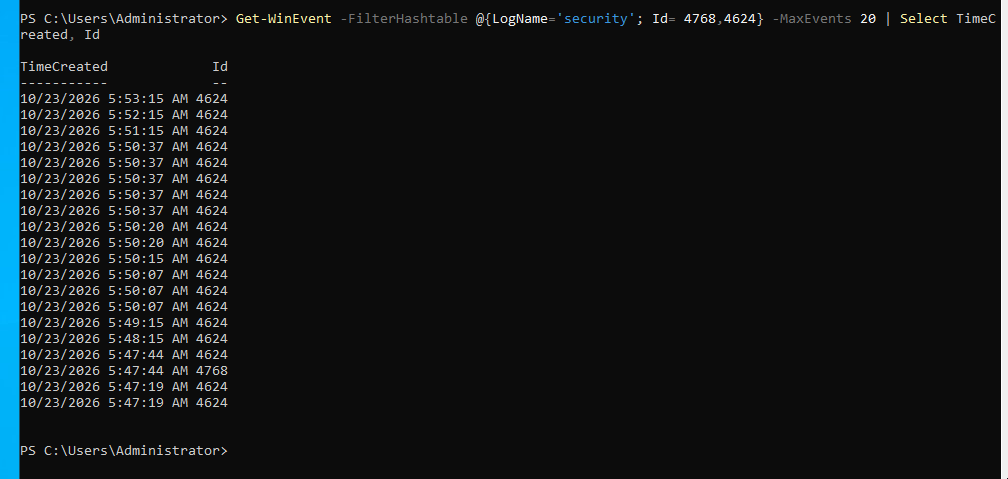 Twenty events with no account names: many belong to computers and services, not to a person
There was a 4768 at 5:47:44 AM, and I assumed it was tuser. When I filtered on the account name, it wasn’t in the list. I don’t know whose it was. The lesson is to filter by TargetUserName before attributing an event to anyone. Several of the 4624 events also repeat at the same second each minute, which looks like automated activity and not a person. I did not look into what it is.
Edit and move
1
2
3
Set-ADUser tuser -Department "IT" -Title "Test Engineer" -Description "Manual exercise account"
New-ADOrganizationalUnit -Name "Lab_moved" -Path "DC=lab,DC=internal"
Move-ADObject -Identity (Get-ADUser tuser).DistinguishedName -TargetPath "OU=Lab_moved,DC=lab,DC=internal"
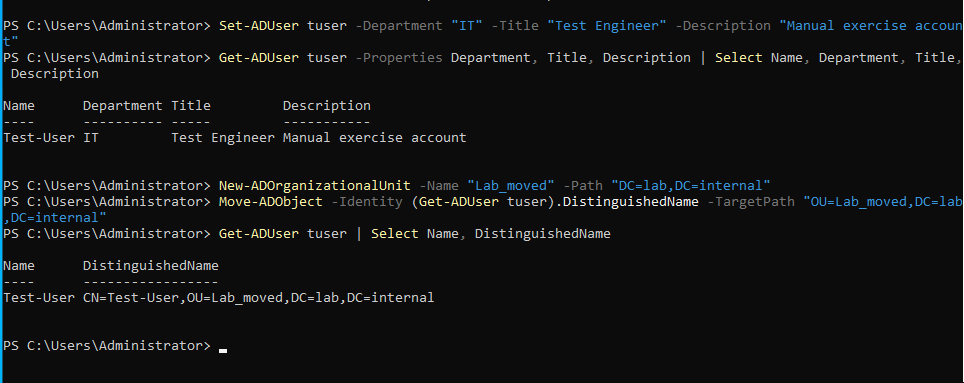 Three attributes set, then the user moved from Lab_test to Lab_moved
The distinguished name changed from CN=Test-User,OU=Lab_test,... to CN=Test-User,OU=Lab_moved,.... A user’s DN includes its OU. The SID and login name stay the same. Group Policy attaches to OUs, so moving an account to another OU changes which policies it gets. The group GG-Test did not move with the user, because groups are separate objects.
Deleting an OU: two locks
I moved the user out first, so Lab_test held only the group. Then I tried to delete it:
1
Remove-ADOrganizationalUnit -Identity "OU=Lab_test,DC=lab,DC=internal" -Confirm:$false
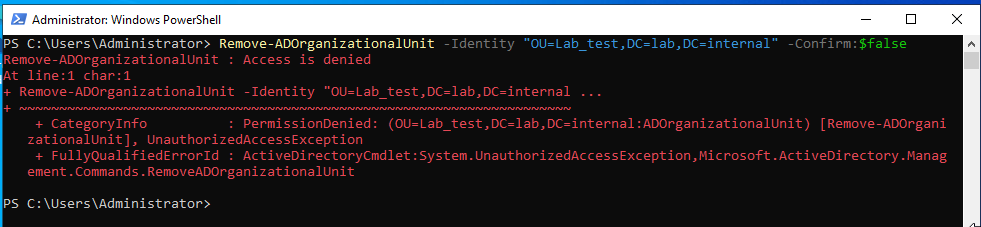 “Access is denied”, even as a domain administrator
The first lock is protection from accidental deletion. Windows adds a hidden permission that denies deletion to everyone, administrators included, until the flag is turned off. The message says “access denied”, not “protected”, which is misleading. I turned it off and tried again:
1
Set-ADOrganizationalUnit -Identity "OU=Lab_test,DC=lab,DC=internal" -ProtectedFromAccidentalDeletion $false
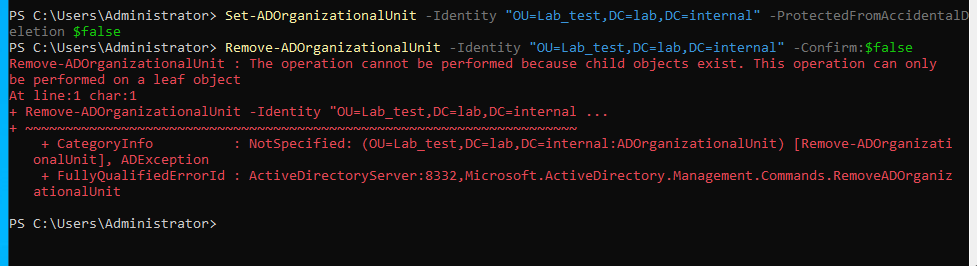 Error 8332: the operation can only be performed on a leaf object
The second lock is that the OU wasn’t empty. A leaf object is one with nothing inside, and the OU still held the group. The -Recursive switch deletes the OU and everything in it:
1
Remove-ADOrganizationalUnit -Identity "OU=Lab_test,DC=lab,DC=internal" -Recursive -Confirm:$false
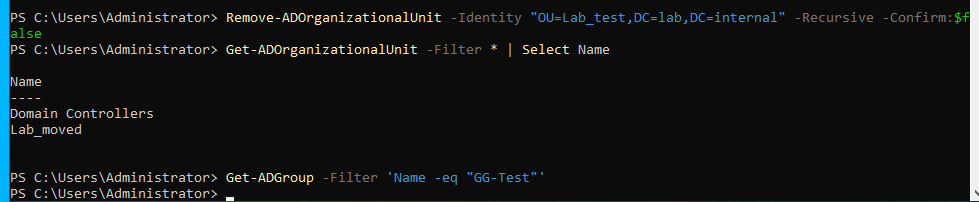 Lab_test is gone, Lab_moved remains, and the group query returns nothing
Two short steps separate an administrator from a deleted department, and that is why every OU in my script will keep its default protection.
Disabling an account
1
2
Disable-ADAccount -Identity tuser
Get-ADUser tuser | Select Name, Enabled
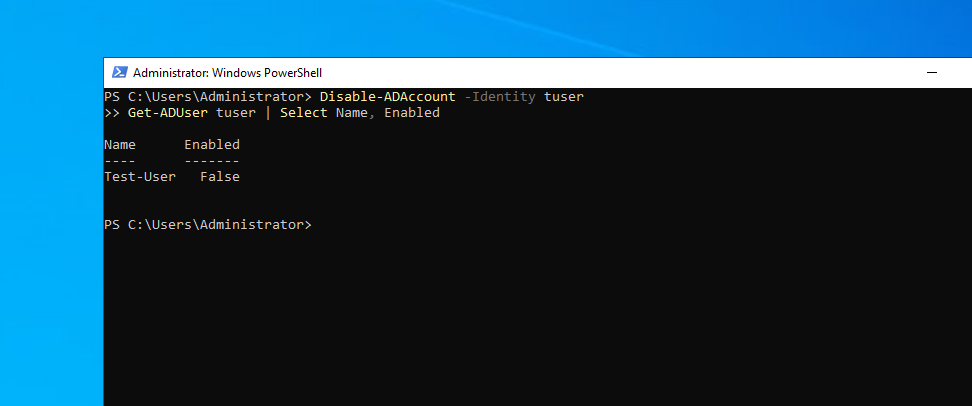 Enabled False
Then I tried to sign in on WS01 as Lab\tuser with the correct password:
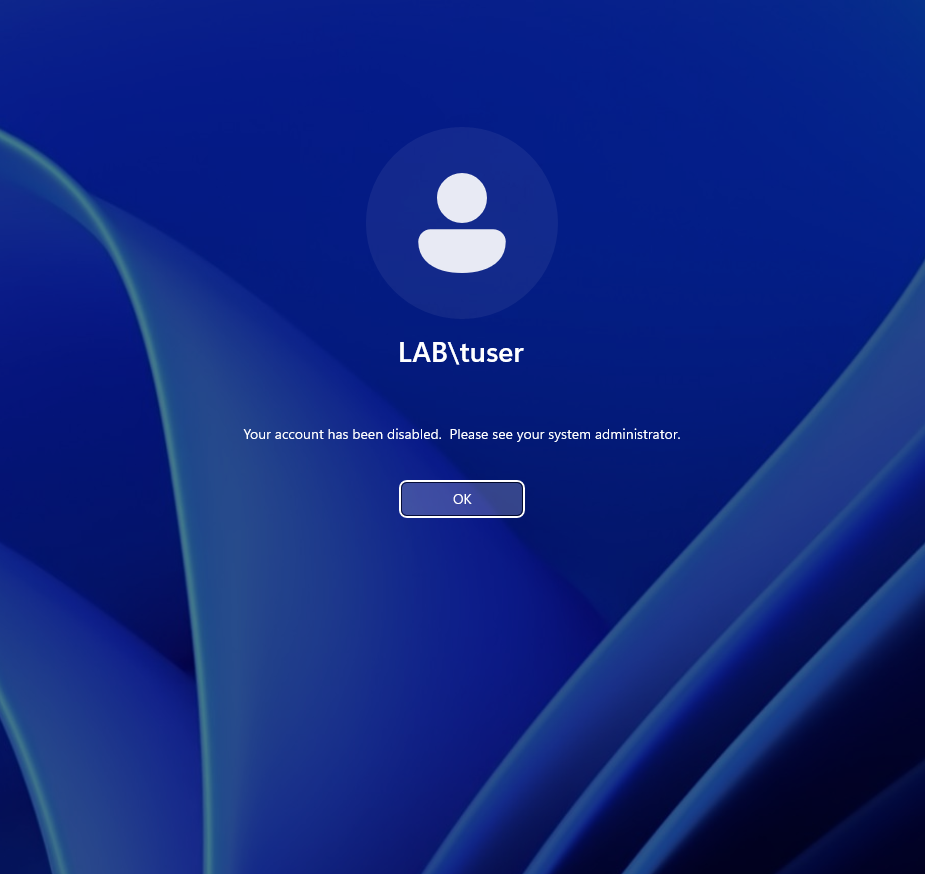 “Your account has been disabled. Please see your system administrator.”
The message is plain, and it tells whoever types the password that the account exists and is disabled. On DC01 I read the log:
1
Get-WinEvent -LogName Security -FilterXPath "*[System[(EventID=4725 or EventID=4722 or EventID=4768 or EventID=4771)]]" -MaxEvents 8 | Select TimeCreated, Id
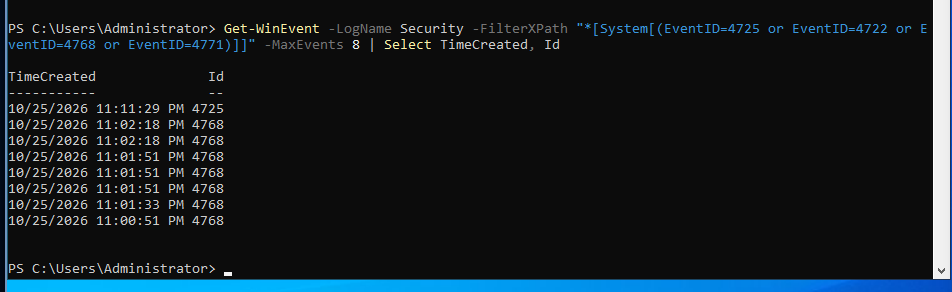 Event 4725, “an account was disabled”, at 11:11:29 PM, above the earlier ticket requests
Event 4725 records the disabling. The 4768 events below it are from 11:00 to 11:02 PM, before I disabled the account.
What surprised me: the newest event is the 4725. I tried to sign in after disabling the account, and the list has no failure event from that attempt. I did not check why. I checked the audit policy afterwards, and the next section shows the result: the domain controller records Kerberos successes but not failures. A detection that depends on failed logins would see nothing until the audit policy is changed.
Enabling it again
1
2
Enable-ADAccount -Identity tuser
Get-ADUser tuser | Select Name, Enabled
 Enabled True
I signed in again as tuser and checked the log for event 4722, “an account was enabled”:
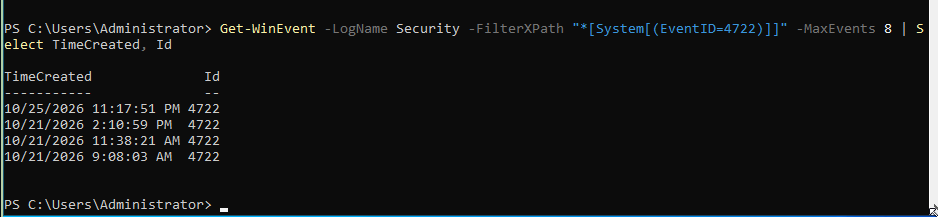 The newest 4722 is from the enable above, at 11:17:51 PM
There are three older 4722 events, all from 21 October. I have not read them, so I don’t know which accounts they belong to. I also enabled tuser once before, on a day when DC01’s clock may already have been wrong (see the next section), and none of the entries is dated that day. One of the older entries could be that event with a wrong timestamp. That is a good reminder of what a forensic investigator has to check first: whether the clock was right.
No account lockout
1
Get-ADDefaultDomainPasswordPolicy | Select MinPasswordLength, ComplexityEnabled, LockoutThreshold, LockoutDuration
The policy shows a minimum password length of 7, complexity enabled, and LockoutThreshold 0. A threshold of zero means an account is never locked, however many wrong passwords are typed. The lockout duration shows 30 minutes, but it only matters when a threshold is set. This is the first real hardening finding in the lab: anyone who can reach the domain controller can guess passwords without limit. I will set a lockout threshold in the Group Policy step.
Wrong passwords on the sign-in screen
With a threshold of 0, I expected nothing to stop me. I typed a wrong password for Lab\tuser five times on WS01:
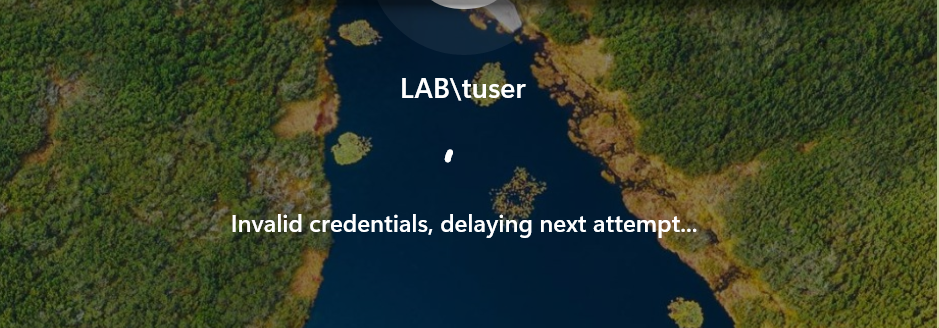 “Invalid credentials, delaying next attempt…” after repeated wrong passwords
The sign-in screen slowed me down. This is not an account lockout. The domain’s lockout threshold is 0, and the delay comes from the Windows sign-in screen on the workstation, not from the domain controller. I have not timed how long it lasts. It protects only against someone typing at this keyboard. An attacker guessing passwords over the network never sees this screen, which is why the lockout threshold still has to be set on the domain. I then went to the domain controller to look for the failures:
1
2
Get-WinEvent -LogName Security -FilterXPath "*[System[(EventID=4771 or EventID=4625)]]" -MaxEvents 8 | Select TimeCreated, Id
auditpol /get /subcategory:"Kerberos Authentication Service"
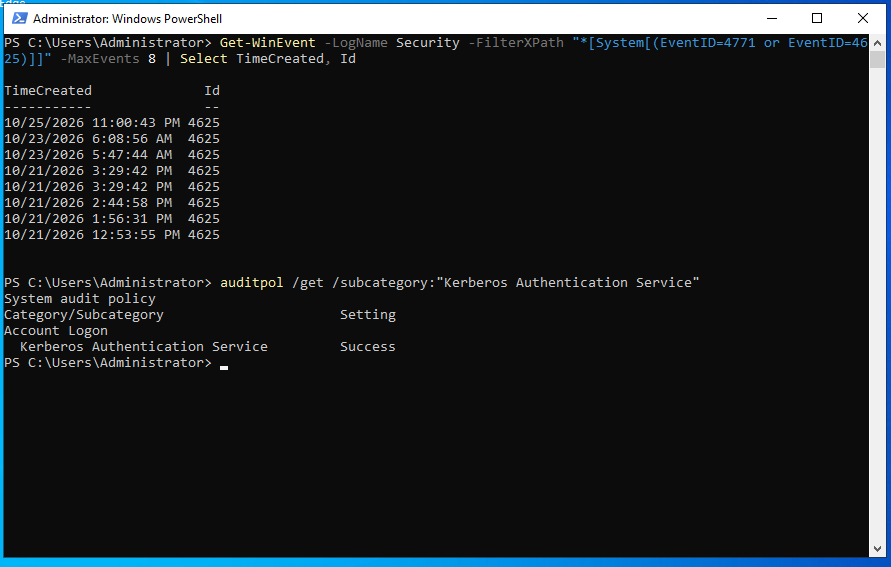 Only event 4625 appears, nothing newer than 11:00 PM, and the Kerberos Authentication Service audit setting is Success only
- There is no event 4771 at all. 4771 is the Kerberos pre-authentication failure, the event a wrong password produces on the domain controller.
- The newest 4625 is from 11:00:43 PM, which is before I disabled the account at 11:11 PM and long before the wrong-password test. So none of my five failed attempts left an event on the DC.
- The audit setting explains it: Kerberos Authentication Service is set to Success only. Failures are not recorded, so no 4771 can exist.
I then read the workstation’s own log and the older 4625 events on the domain controller. The two machines tell different stories.
On WS01, the failed attempts are there. Six 4625 events from 11:33:16 PM to 11:33:47 PM, all with:
- Account Name
tuser, Account DomainLAB - Logon Type
2(interactive, at the keyboard) - Status
0xC000006Dand Sub Status0xC000006A, with the reason “Unknown user name or bad password” - Subject
WS01$, source address127.0.0.1, logon processUser32
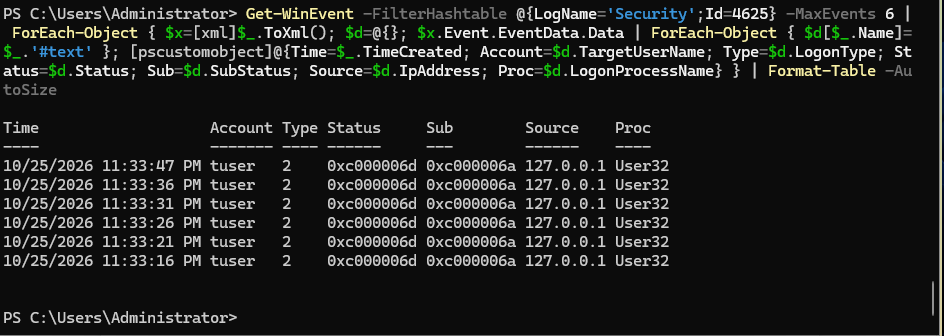 The workstation’s own log: six failed interactive logons for tuser, each with the wrong-password sub status
Sub Status 0xC000006A is the wrong-password code. 0xC0000072 would be a disabled account. So the workstation recorded my wrong passwords, with the account name, while the domain controller recorded nothing. A defender who collects logs only from the domain controller would miss someone guessing passwords at a keyboard. The workstations need to send their logs too, which is what the agents in Phase 2 are for. The first five events are 5 seconds apart and the last is 11 seconds after the fifth. I did not work out why.
On DC01, the 4625 list also holds two kinds of older entries:
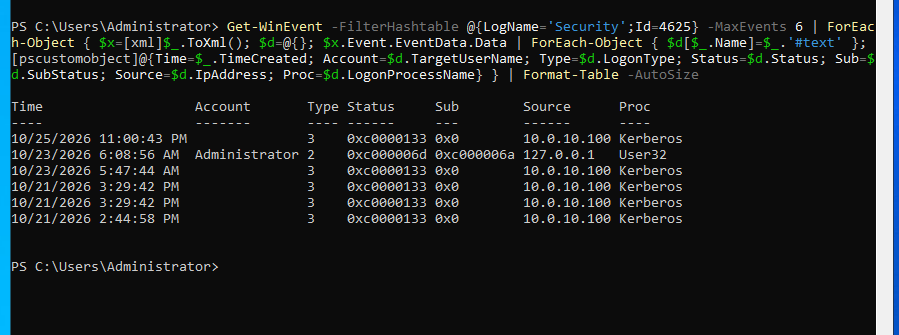 DC01’s 4625 events: one wrong password at the console, and five network logons from WS01’s address with status 0xc0000133
- At 6:08:56 AM on 23 October, an interactive logon (type 2) failed on DC01 for
LAB\Administrator, with the same sub status0xC000006A. That is a wrong password typed at the DC01 console. It has the same shape as the WS01 events, because both machines audit logon failures on themselves by default. Only the Kerberos failures on the domain controller are not recorded. - Five 4625 events with no account name, logon type
3(network), logon processKerberos, status0xC0000133and the source address10.0.10.100, which is WS01. The reason text says only “An Error occured during Logon”. They are dated 2:44:58 PM and twice at 3:29:42 PM on 21 October, 5:47:44 AM on 23 October and 11:00:43 PM on 25 October. That status isSTATUS_TIME_DIFFERENCE_AT_DC: the clocks of the two computers were too far apart for Kerberos, which tolerates five minutes. A Microsoft support blog post documents that mapping. It means that on 25 October at 11:00 PM, after I had fixed the time on the 23rd, WS01 and DC01 still disagreed by more than the limit. I don’t know which of the two clocks was wrong. The 5:47:44 AM event is the failed attempt that shares its timestamp with the 4768 I couldn’t explain earlier. - One thing I can’t explain: the three events dated 21 October are older than the domain join. VirtualBox’s snapshot times, which come from the host clock, put the join in the early hours of 22 October, so a machine that wasn’t yet a domain member should not have been attempting Kerberos logins against the domain controller. DC01’s own clock was wrong at some point in this period, so those timestamps may not be reliable. I have recorded it and not drawn a conclusion.
To check what the Windows error text says, I ran the Win32 time-skew error code:
1
net helpmsg 1398
 “There is a time and/or date difference between the client and server.”
A detour: the wrong clock
During the exercise, DC01 showed the wrong date, time and time zone. w32tm /resync on both DC01 and WS01 reported that the time change was too big.
Kerberos rejects a login when two clocks differ by more than five minutes, and a wrong clock puts false times in the logs I’m studying. That makes it a real problem, not a cosmetic one.
DC01 had been set to take its time from the internet with:
1
w32tm /config /manualpeerlist:"time.cloudflare.com,0x8 pool.ntp.org,0x8" /syncfromflags:manual /reliable:yes /update
A restart of DC01 fixed the clock. I don’t know whether the setting or the restart did it, and I don’t know why the clock drifted. Afterwards the Settings app showed the time server list, a recent synchronisation and the Nairobi time zone:
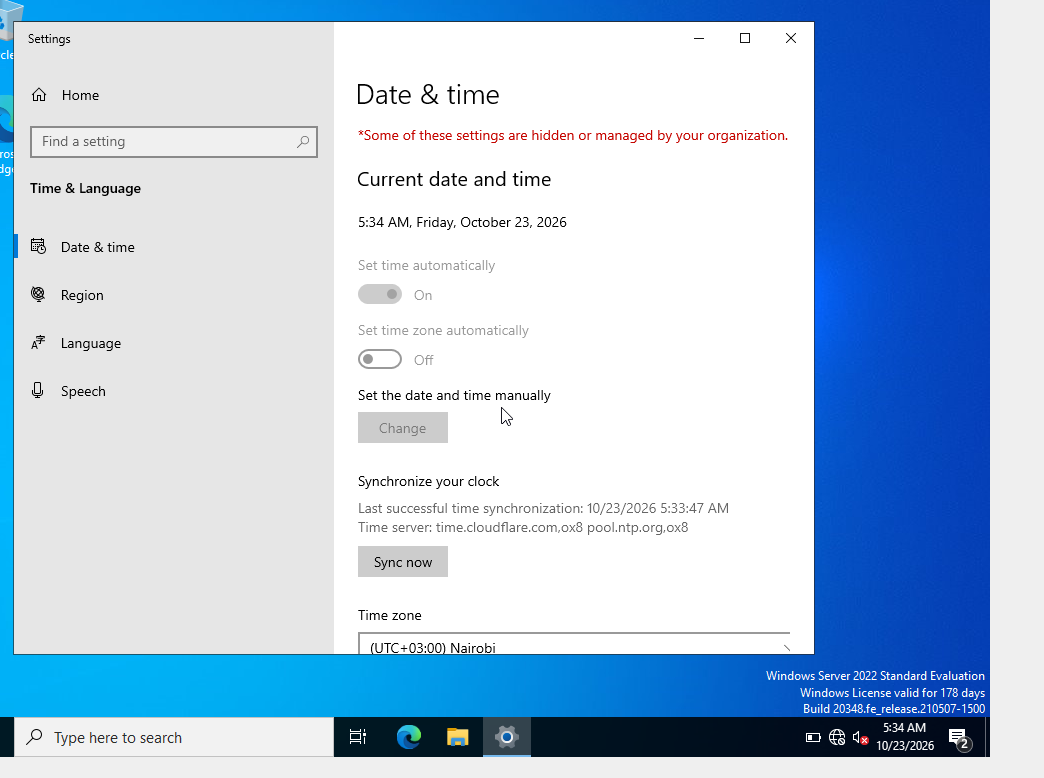 Synchronised against Cloudflare, with the controls greyed out: “some of these settings are hidden or managed by your organization”
The controls to set the time automatically or manually are greyed out. I looked for the reason and checked which Group Policy applied:
1
gpresult /scope computer /r
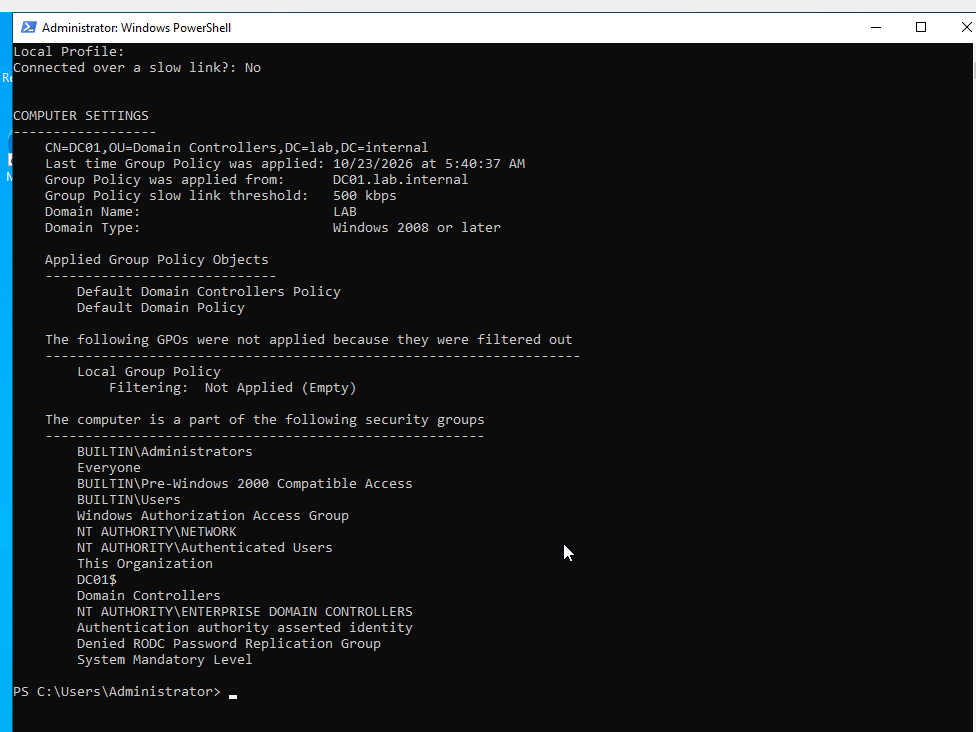 Only the two default policies apply. Local Group Policy is empty.
Only Default Domain Controllers Policy and Default Domain Policy are applied, and Local Group Policy is empty. So no custom policy causes the message. My best guess is that it is how Windows behaves on a domain controller, which I have not confirmed.
From the command line:
1
2
w32tm /query /source
w32tm /query /status
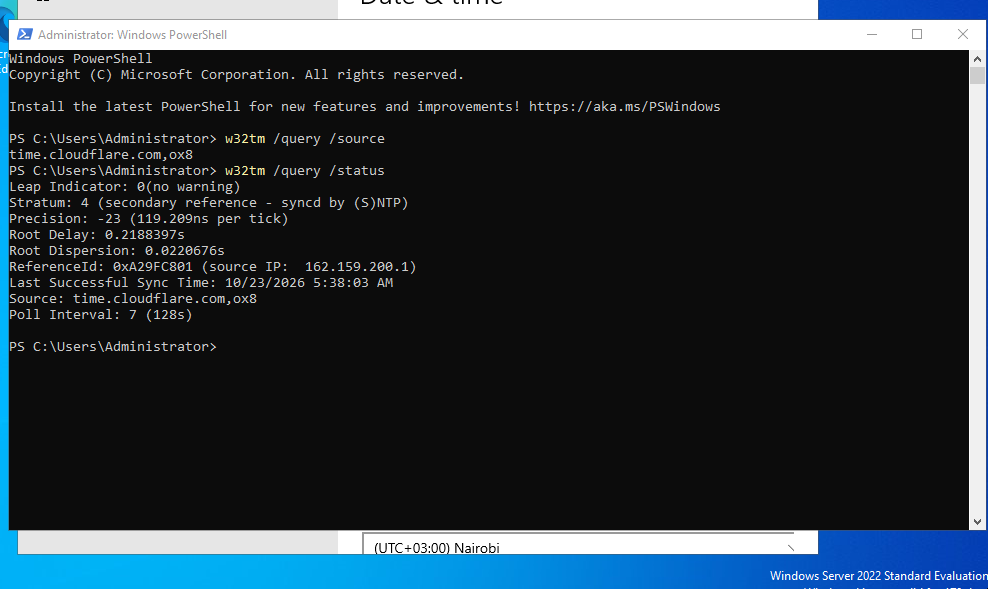 Source time.cloudflare.com, stratum 4, last successful sync at 5:38 AM, polling every 128 seconds
The reference IP, 162.159.200.1, belongs to Cloudflare, so NTP traffic really leaves the lab through the firewall, which also settles whether UDP port 123 works. On WS01:
1
2
3
Get-TimeZone
w32tm /resync
w32tm /query /source
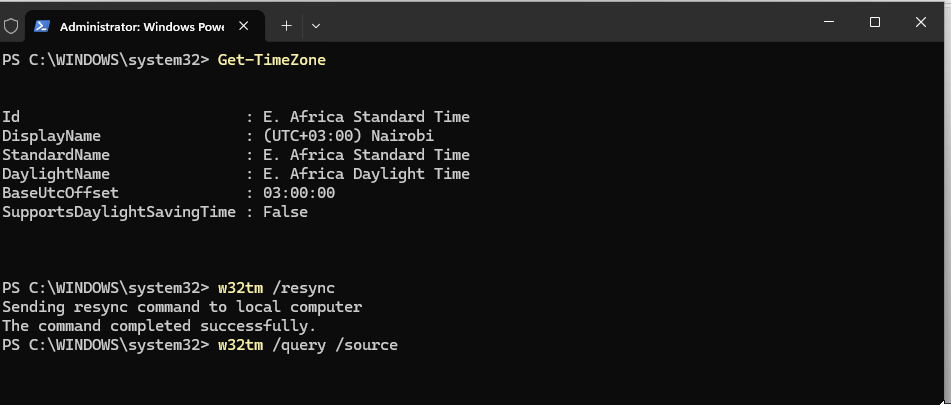 E. Africa Standard Time, and a resync that completes successfully
The resync completed successfully, and the source on WS01 returned DC01.lab.internal. So time flows from the internet to DC01 to WS01, the way a domain should do it.
I also installed the VirtualBox Guest Additions on DC01, so I can paste long commands. On Arch the ISO comes from a separate package, virtualbox-guest-iso. The shared clipboard is set to bidirectional. A two-way clipboard is a path between my real machine and the lab, and the whole design is about keeping them apart. Host to Guest would be the safer setting. DC01 is the defender and holds nothing hostile, so I accept it for now, and I will switch it off on any machine that handles malware.
Outcome
- I created, edited, moved, deleted, disabled and enabled objects by hand, and read the Windows event each one left behind.
- I hit and fixed six errors: a missing comma, a refused password, a leftover account, misspelled property names, and two deletion locks.
- I found two real security findings: no account lockout, and a domain controller that records Kerberos successes but not failures.
Still to do
- Wrong passwords: read events 4771 and 4625 for the failed attempts above, and confirm that the account did not lock.
- Delete and recreate
tusercleanly, and checkwhoami /groupsagain to find out whetherDomain Usersappears. - Fix the audit policy so failures are recorded, in the Group Policy step.
- Measure WS01’s clock offset against DC01, and find out why the two disagreed on 25 October.
- Find out why the clock drifted.
What I would do differently
I would read my own commands once before pressing Enter. Two of the six errors, the missing comma and the misspelled properties, were typing mistakes, and both were visible in the command.
Next
Finish the three exercises above, then write the script that creates the five OUs and 150 users, and the Group Policy that sets the lockout threshold and the audit policy.