Joining a Windows 11 Client to the Domain
Checking that a client can find the domain controller, joining it to lab.internal, a half-finished rename, and what the login screen is really telling you.
Overview
This is the fifth post in my Hybrid Identity Detection Lab project. The last post ended with a domain controller for lab.internal and a Windows 11 client that had its address from DC01’s DHCP scope. This post joins that client to the domain.
The join itself is one command. What I learned came from the checks before it and from two things that went differently than I expected: a rename that failed halfway, and a login screen that I misread.
The steps:
- Check that the client can find the domain controller
- Take a snapshot
- Join the domain and rename the computer
- Sign in with a domain account
- Verify from both sides
Environment
- DC01: Windows Server 2022,
10.0.10.10, the domain controller, DNS and DHCP server - win11: Windows 11 Pro,
10.0.10.100, to be renamedWS01 - fw01: pfSense,
10.0.10.1, the gateway
Step 1: Can the client find the domain?
A domain join needs more than a working network. The client must find a domain controller, and it does that through DNS. Before changing anything I ran four checks on the client:
1
2
3
4
nslookup lab.internal
nslookup dc01.lab.internal
Resolve-DnsName -Type SRV _ldap._tcp.dc._msdcs.lab.internal
Test-NetConnection 10.0.10.10 -Port 389
| Check | What it proves |
|---|---|
nslookup lab.internal and dc01.lab.internal | DC01’s DNS answers for the domain and for the server itself. |
| The SRV query | The record Windows actually uses to locate a domain controller. If it is missing, the join fails with “domain could not be contacted”. |
| Port 389 | LDAP, the directory service the client talks to, is reachable. |
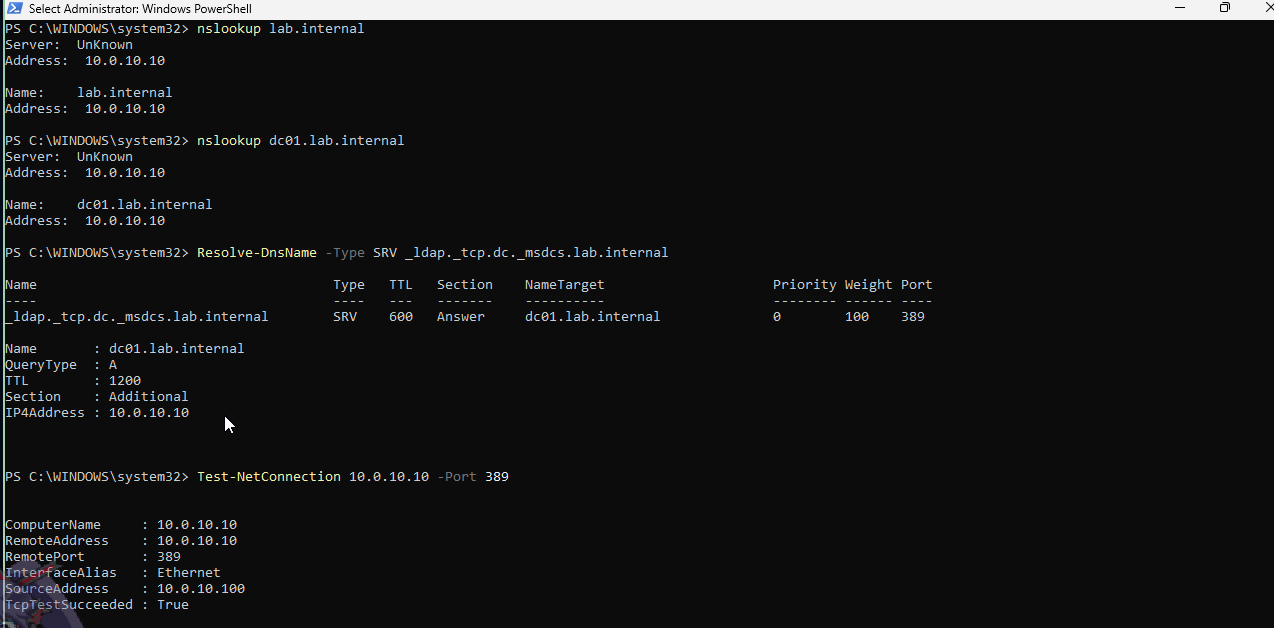 Both names resolve to 10.0.10.10, the SRV record names dc01.lab.internal on port 389, and the LDAP test succeeds
All four passed. The SRV record points at dc01.lab.internal on port 389, and its A record is 10.0.10.10.
nslookup printed Server: UnKnown. That is harmless. nslookup first does a reverse lookup of the DNS server’s own address, and DC01 has no reverse lookup zone for 10.0.10.x. It only affects that label, not the answers.
Step 2: A snapshot first
I took the snapshot phase1-ws01-before-join in VirtualBox. Joining a domain changes the machine’s identity, and a snapshot is the clean way back. I did not need to restore it.
Step 3: Join and rename in one command
I tried to do both things at once:
1
Add-Computer -DomainName "lab.internal" -NewName "WS01" -Credential (Get-Credential LAB\Administrator) -Restart
Get-Credential opens a box for the domain administrator’s password, so it never appears in the command or the shell history. I’m not showing that dialog here.
The result was only half of what I asked for:
1
2
3
Add-Computer : Computer 'win11' was successfully joined to the new domain 'lab.internal',
but renaming it to 'WS01' failed with the following error message:
The directory service is busy.
The join worked and the rename didn’t. -Restart never ran, because the command stopped on the error, and whoami still returned win11\vboxuser, since a join only takes effect at the next boot.
I don’t know why the directory service was busy. DC01 has 3 GB of RAM and had just done a lot of work, but I did not measure anything, so that is a guess.
The lesson is to do the two steps separately. After the restart, I renamed the computer on its own:
1
Rename-Computer -NewName "WS01" -DomainCredential LAB\Administrator -Restart
On a domain-joined machine this renames the Active Directory object as well, so the directory and DNS stay consistent.
Step 4: The login screen
After the restart, the login screen offered vboxuser and Other user.
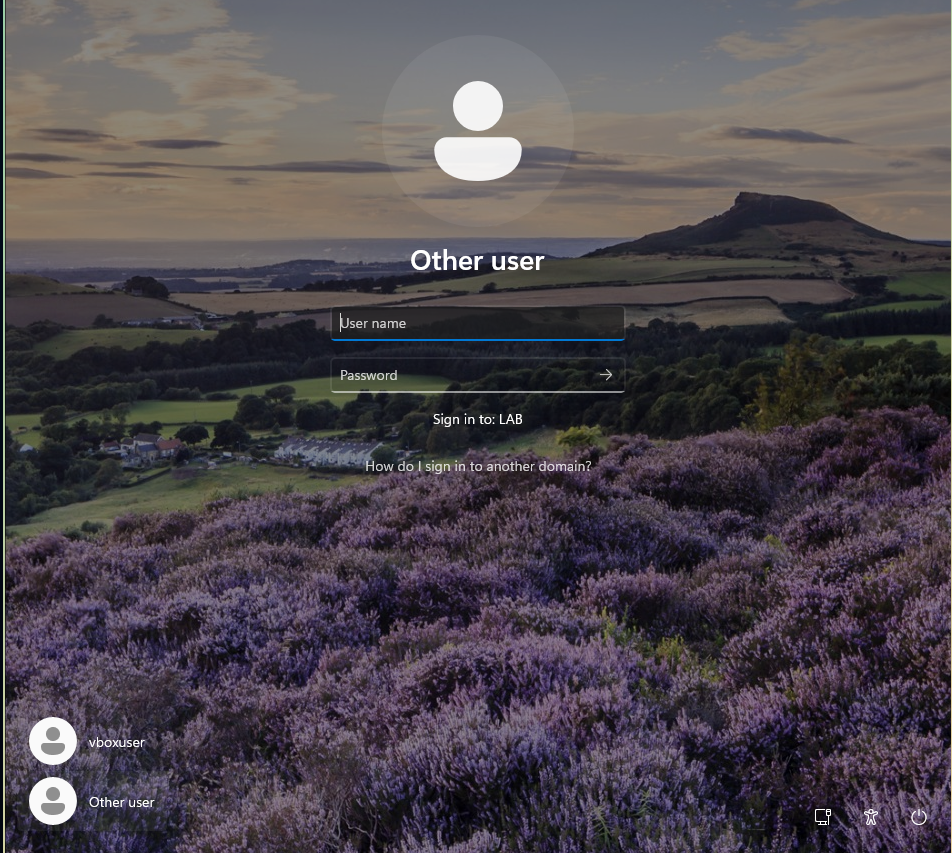 Other user shows “Sign in to: LAB”, which means the join worked
Two things are worth understanding here.
Why “Other user”. The login screen lists accounts that have signed in on this machine before. A domain account has never signed in here, so it isn’t listed, and Other user is how you type one. The line Sign in to: LAB is the evidence that the join worked. I expect it showed the computer’s name before the join, but I did not check.
The slash. The separator in DOMAIN\user is a backslash. A forward slash isn’t part of that syntax, so Windows doesn’t see a domain and a user name. One of my attempts used a forward slash:
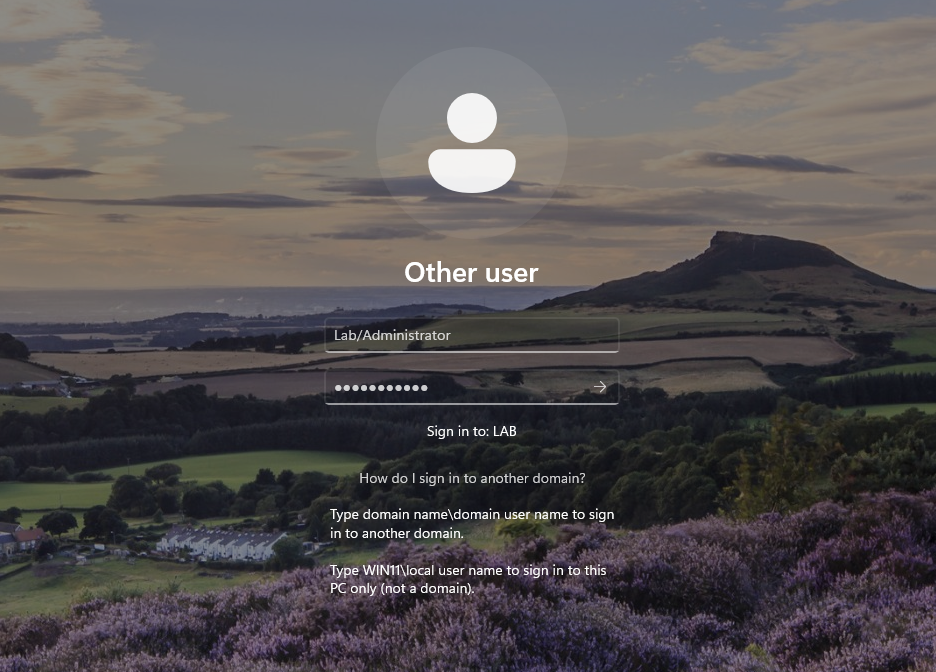 The help text spells it out: domain name\domain user name, with a backslash
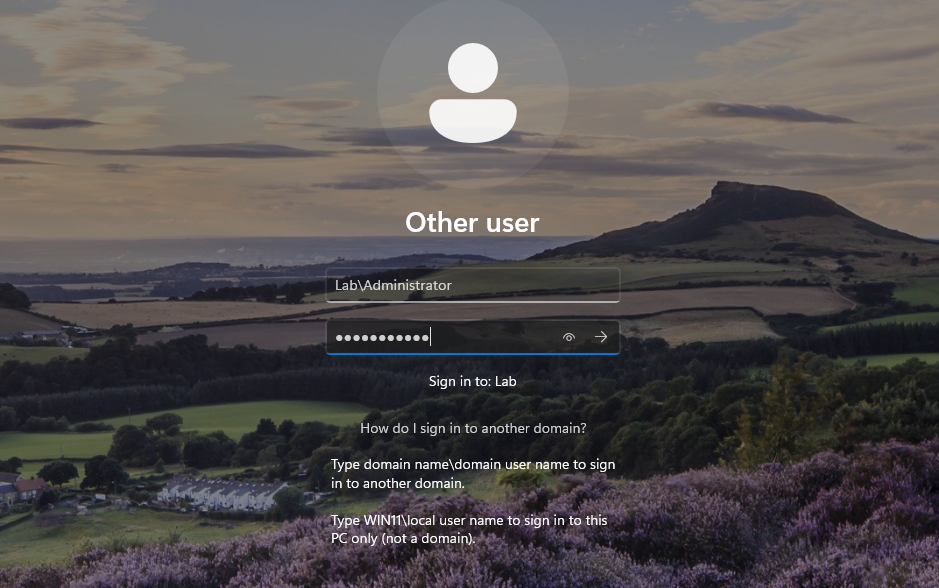 Lab\Administrator with a backslash
Capitals don’t matter, so Lab, LAB and lab all work. The UPN form, administrator@lab.internal, also works.
LAB or WIN11 before the backslash
The help text on the screen explains the rest. The name before the backslash says who checks the password:
| You type | Who checks the password |
|---|---|
LAB\Administrator | DC01, through Active Directory. |
WIN11\vboxuser | This PC alone, in its local account database. |
The two sets of accounts are separate. A local WIN11\Administrator and the domain’s LAB\Administrator can exist at the same time, with different passwords and different rights.
Typing only Administrator
After the rename, the screen said Sign in to: WS01, and I had typed just Administrator:
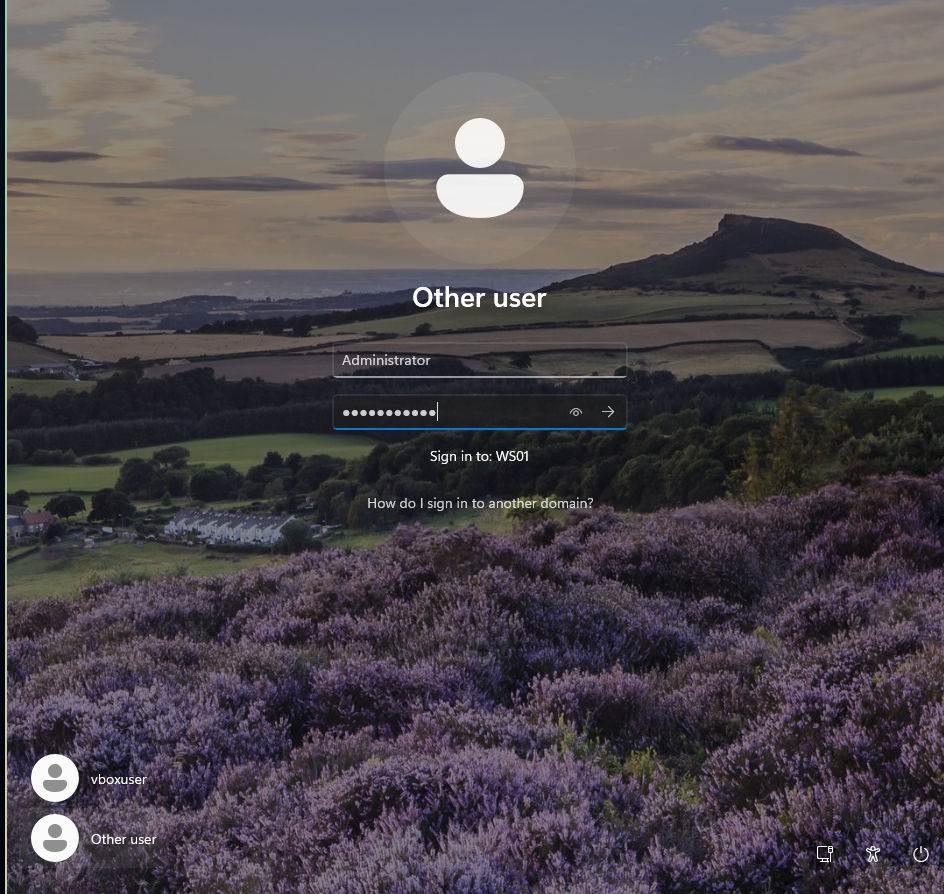 The hint switched from LAB to WS01 after the rename, and the user name has no domain in front
With no domain in front, Windows tries the local account on the PC, not the domain account. The rule is simple: always type the domain, as Lab\Administrator. I don’t know why the hint changed from LAB to WS01 after the rename. A restart may have reset it to the default. It did not matter once I typed the domain.
Step 5: Verifying from both sides
On WS01:
1
2
hostname
(Get-CimInstance Win32_ComputerSystem) | Select Name, Domain, PartOfDomain
On DC01:
1
Get-ADComputer -Filter * | Select Name, DNSHostName, Enabled
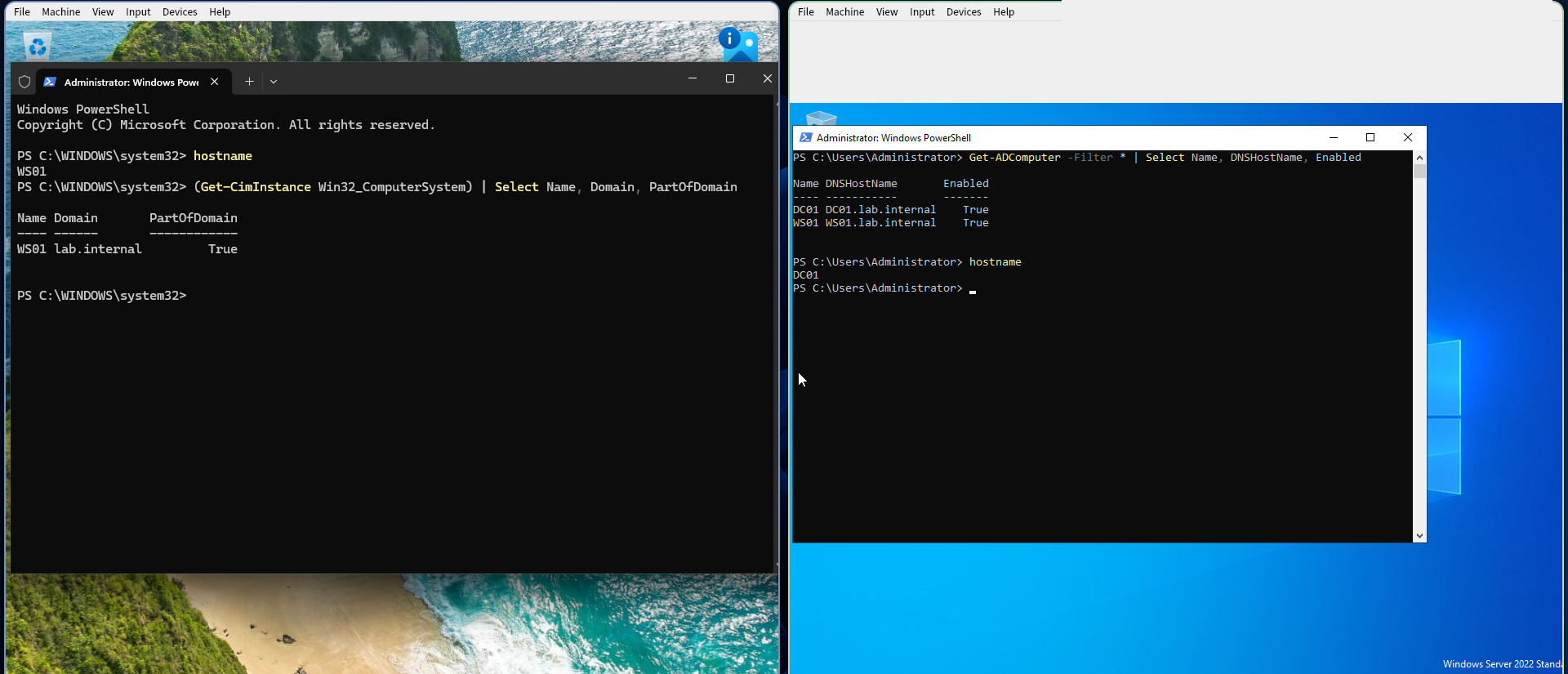
Left: WS01 says it is part of lab.internal. Right: DC01 lists DC01 and WS01 as computers
- WS01 reports
WS01,lab.internalandPartOfDomain True. - DC01 lists
DC01andWS01, both enabled, and noWIN11. The rename updated the directory object, not just the label on the PC.
Both ends of the same fact agree, which is why I put them in one frame.
I then took a snapshot on each machine: phase1-ws01-domain-joined and phase1-dc01-ws01-joined.
 DC01’s snapshot chain, from the fresh install to the domain join
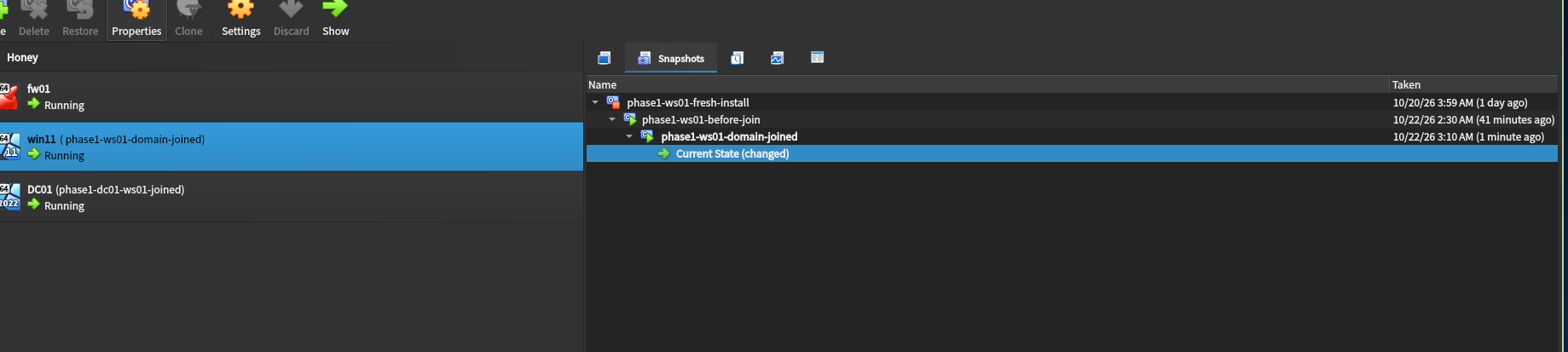 WS01’s chain, with the snapshot taken before the join
Outcome
- The client found the domain controller through the DNS SRV record before the join, and I checked that first.
- WS01 is a domain member, and its computer object exists in Active Directory under the new name.
- I can sign in with a domain account, and I understand what the login screen is telling me.
What I would do differently
I would join and rename as two separate steps from the start. The combined command left the machine in a half-finished state that I then had to reason about. I would also type Lab\ in front of the user name every time, even when the screen offers a default domain.
Next
A manual exercise in Active Directory: an organisational unit, a user and a group, created, edited, broken and fixed by hand before I write the script that builds 150 users.