GitHub + SSH: From Creating a Repository to Pushing Code
A beginner's guide to installing Git, creating an SSH key, connecting to GitHub and pushing your first project, with the errors you will probably hit and how to fix them.
Overview
This guide takes you from nothing to your first push on GitHub, using SSH instead of passwords. The commands are for Linux (Arch is used as the example, with a note for Debian and Ubuntu). It takes about 15 minutes. You need a free GitHub account.
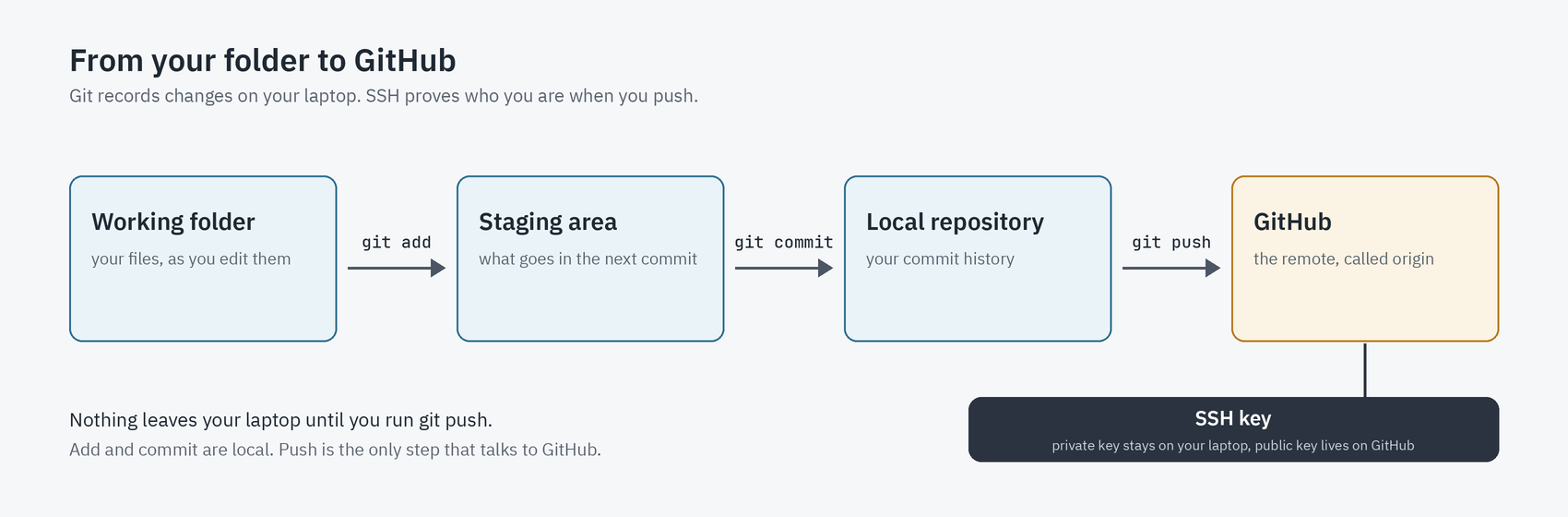
Four pieces work together, and it helps to know which does what:
- Git records your changes as commits on your own computer.
- SSH proves to GitHub that the push comes from you.
- The remote (named
origin) is the address of your repository on GitHub. git pushsends your commits to that remote.
Add and commit stay on your laptop. Only push talks to GitHub.
1. Install Git and OpenSSH
1
2
3
4
5
# Arch Linux
sudo pacman -S git openssh

# Debian and Ubuntu
sudo apt install git openssh-client
Check that both are installed:
1
2
git --version
ssh -V
2. Tell Git who you are
Every commit carries a name and an email:
1
2
3
git config --global user.name "Your Name"
git config --global user.email "you@example.com"
git config --global init.defaultBranch main
The last line makes new repositories start on a branch called main, which is what GitHub expects. Check the result:
1
git config --global --list
To have GitHub link commits to your account, use an email address that is on your account. If you prefer to keep your real address private, GitHub gives you a
noreplyaddress under Settings → Emails.
3. Create an SSH key
An SSH key is a pair of files. Think of a padlock and its key. The public key (the padlock) goes on GitHub, and the private key stays on your computer and proves it is you.
First check whether you already have one:
1
ls -la ~/.ssh
Look for id_ed25519 and id_ed25519.pub. If they exist, reuse them and skip to step 4. Do not generate a new key over an existing one, because you would lose access to everything the old key opened.
If you need a new key:
1
ssh-keygen -t ed25519 -C "you@example.com"
- Press Enter to accept the default file location.
- Set a passphrase. It encrypts the private key, so a stolen copy of the file is useless.
Never share the file called
id_ed25519. Onlyid_ed25519.pubis ever uploaded or sent to anyone.
4. Load the key into the SSH agent
A passphrase-protected key needs the passphrase every time it is used. The SSH agent keeps the unlocked key in memory for your session, so you type the passphrase once.
1
2
eval "$(ssh-agent -s)"
ssh-add ~/.ssh/id_ed25519
Enter the passphrase when asked. Check that the key is loaded:
1
ssh-add -l
To have SSH add the key to the agent the first time you use it, create or edit ~/.ssh/config:
1
2
3
Host github.com
    AddKeysToAgent yes
    IdentityFile ~/.ssh/id_ed25519
The agent belongs to one shell session. A new terminal, a script, or a tool started without your environment may have no agent, and then pushes fail with
Permission denied (publickey)even though your own terminal works. Check withecho $SSH_AUTH_SOCK. If it prints nothing, there is no agent in that environment.
5. Add your public key to GitHub
Print the public key:
1
cat ~/.ssh/id_ed25519.pub
Then, on GitHub:
- Go to Settings → SSH and GPG keys.
- Click New SSH key.
- Give it a title that says where the key lives, such as
Arch Linux laptop. - Set the key type to Authentication Key.
- Paste the whole line you printed and save.
6. Test the connection
1
ssh -T git@github.com
The first time, SSH shows GitHub’s host-key fingerprint and asks whether to continue. Compare it with the fingerprints on GitHub’s official documentation page before you type yes. This protects you from connecting to an impostor.
A working setup prints something like this:
1
Hi USERNAME! You've successfully authenticated, but GitHub does not provide shell access.
That message is a success. GitHub does not give you a shell, and the command exits with a non-zero code anyway. It only confirms that GitHub recognises your key. You still need permission on a repository to push to it.
7. Create a repository on GitHub
- Click New repository.
- Enter a name and an optional description.
- Choose Public or Private.
- If you already have a project on your computer, leave Add a README, .gitignore and license unchecked. An initial file on GitHub gives the two sides different histories, and your first push then fails.
- Click Create repository.
Copy the SSH URL from the page. It looks like this:
1
git@github.com:USERNAME/REPOSITORY.git
8. Prepare your local project
1
2
3
cd ~/projects/my-project
git init
git status
git init turns the folder into a repository. git status shows what Git sees.
Before staging anything, create a .gitignore file listing what must never be committed:
1
2
3
4
5
.env
.venv/
node_modules/
__pycache__/
*.pyc
Adjust it for your project.
Never commit passwords, API keys or private keys. If a secret reaches GitHub, deleting it in a later commit does not remove it from the history. Treat it as exposed and replace it.
9. Stage and commit
Staging chooses what goes into the next commit. Committing records it.
1
2
3
4
git add .
git status
git diff --cached
git commit -m "Initial commit"
git add . stages everything in the folder, so read git status and git diff --cached before you commit. If you are unsure about a file, stage files by name instead (git add README.md).
10. Connect to GitHub and push
1
2
3
git branch -M main
git remote add origin git@github.com:USERNAME/REPOSITORY.git
git remote -v
Replace USERNAME and REPOSITORY with yours. The last command should show the URL twice, once for fetch and once for push.
Now push:
1
git push -u origin main
pushuploads your commits.originis the remote you just added.mainis the branch being pushed.-uremembers this pairing, so later pushes only needgit push.
Your code is now on GitHub.
11. The everyday workflow
1
2
3
4
git status
git add .
git commit -m "Describe what changed"
git push
If you work from more than one computer, or with other people, run git pull before you start so you have the latest commits.
12. If the project is already a repository
You don’t repeat the SSH setup. Check where origin points:
1
git remote -v
- It starts with
https://github.com/: it uses HTTPS and will ask for a password. Switch it to SSH:1
git remote set-url origin git@github.com:USERNAME/REPOSITORY.git
- There is no
origin: add one withgit remote add origin ...as in step 10.
13. Common problems
Permission denied (publickey)
GitHub did not accept any key you offered. Work through these in order:
- Is the key loaded? Run
ssh-add -l. If it says the agent is not running or has no identities, repeat step 4. - Is the public key on your GitHub account? Compare
cat ~/.ssh/id_ed25519.pubwith Settings → SSH and GPG keys. - Do you have access to the repository? A valid key on the wrong account is still refused.
- Ask SSH what it is doing:
ssh -vT git@github.comlists the keys it tries.
GitHub asks for a username and password
Your remote uses HTTPS. Run git remote -v, then switch it with git remote set-url as in step 12.
remote origin already exists
Change the existing remote instead of adding another:
1
git remote set-url origin git@github.com:USERNAME/REPOSITORY.git
src refspec main does not match any
There is no main branch with a commit on it. Either you have not committed yet, or your branch has a different name. Run git status and git branch, commit if needed, or use git branch -M main.
rejected or fetch first when pushing
The remote has commits that you don’t have. Bring them in, then push again:
1
2
git pull --rebase origin main
git push
Do not force-push (--force) to get past this error, because it can erase other people’s work.
Host key verification failed, or a warning that the host identification has changed
Do not ignore it. Do not delete the line from known_hosts until you have confirmed the new fingerprint against GitHub’s documentation.
nothing to commit
Run git status. Your changes may already be committed, or you haven’t changed any tracked file.
Commits show the wrong name or email
Check the last commit:
1
git log -1 --format='%an <%ae>'
Fix your settings with git config --global user.name and user.email. If the commit has not been pushed yet, rewrite its author with:
1
git commit --amend --reset-author --no-edit
Quick reference
| Task | Command |
|---|---|
| Check status | git status |
| Start a repository | git init |
| Stage everything | git add . |
| Commit | git commit -m "message" |
| List remotes | git remote -v |
| Add a remote | git remote add origin SSH_URL |
| Change a remote | git remote set-url origin SSH_URL |
| First push | git push -u origin main |
| Later pushes | git push |
| Get new commits | git pull |
| Test GitHub SSH | ssh -T git@github.com |
| See history | git log --oneline |
The short version
Git saves your work as commits on your laptop. SSH proves to GitHub that you are you. The remote links your folder to a repository on GitHub, and git push sends your commits there.