Building the Domain Controller with AD DS, DNS and DHCP
Giving a Windows Server a fixed address, creating the lab.internal domain, setting up DHCP, and the network profile problem that showed up after the first reboot.
Overview
This is the fourth post in my Hybrid Identity Detection Lab project. The firewall and the attacker path are in place from the earlier posts. This post builds the heart of the lab: a Windows Server domain controller for the domain lab.internal, with DNS and DHCP, and a first client lease.
I did this in a fixed order, taking a snapshot before each risky step so I could go back:
- A fixed address on
DC01 - The AD DS role, then the new forest
- Health checks
- DHCP
- A lease for the Windows 11 client
Environment
- DC01: Windows Server 2022 evaluation, 3 GB RAM, 2 CPUs, on the internal network
adlab-net - win11: Windows 11 Pro, on the same network. The edition matters: Windows 11 Home cannot join a domain.
- fw01: pfSense, the gateway at
10.0.10.1 - Snapshots:
phase1-dc01-fresh-install,phase1-dc01-before-ad,phase1-dc01-ad-installed
With all three VMs running, my 16 GB host reached about 92% memory use, so I reduced DC01 to 3 GB and the firewall to about 1.2 GB.
Step 1: A fixed address
A domain controller needs an address that never changes, because every other machine will be told where to find it. I gave it 10.0.10.10/24 with the pfSense gateway, and pointed DNS at pfSense for now, because DC01’s own DNS does not exist until the domain is created. I also renamed the server to DC01 and restarted it before creating the domain, because renaming a domain controller afterwards is painful. The first ipconfig still showed the old random name until the restart.
The PowerShell equivalent of the address settings is:
1
2
New-NetIPAddress -InterfaceAlias "Ethernet" -IPAddress 10.0.10.10 -PrefixLength 24 -DefaultGateway 10.0.10.1
Set-DnsClientServerAddress -InterfaceAlias "Ethernet" -ServerAddresses 10.0.10.1
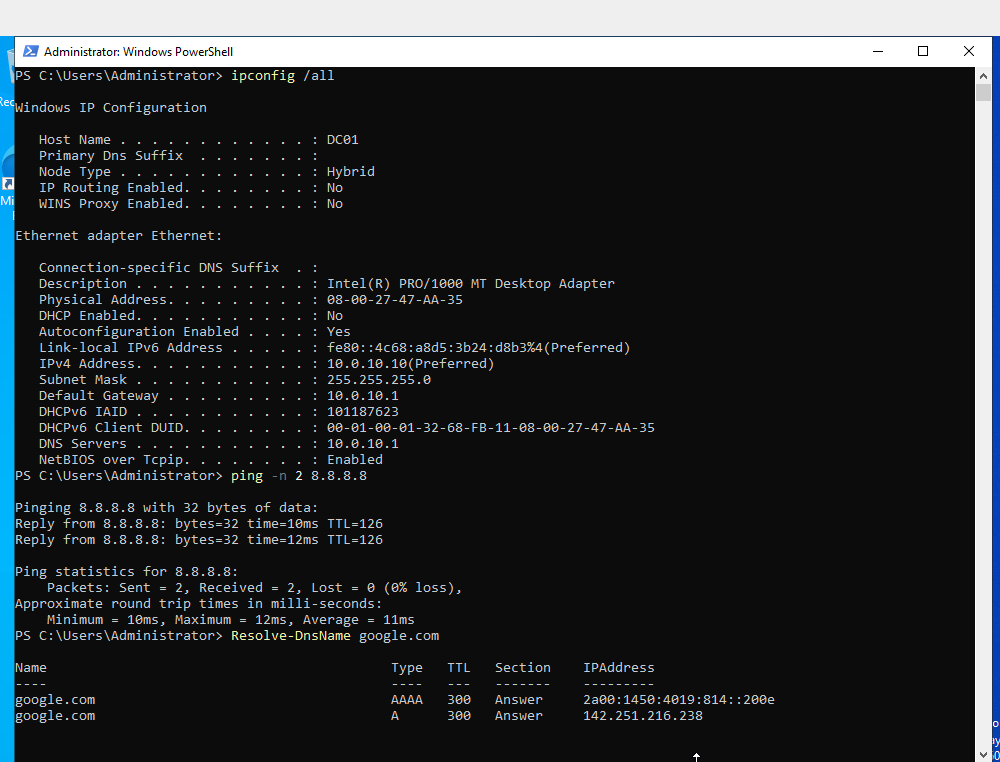 Host name DC01, fixed address, and a working ping and DNS lookup through pfSense
The “discoverable” prompt
When I applied the network settings, Windows asked whether to let this PC be discoverable on the network. I answered No.
The answer sets the network’s firewall profile. Yes makes it Private, which allows network discovery and file sharing. No makes it Public, the stricter profile. I chose No because a domain controller has no use for discovery: it is found through DNS and Active Directory, not by browsing the network. Discovery also switches on name-lookup protocols that attackers abuse, such as LLMNR, NetBIOS and mDNS, and I plan to disable those with Group Policy in the hardening step. Opening them now would only mean closing them later.
The profile is not permanent. Once the machine becomes a domain controller, Windows is supposed to reclassify the network as a domain network, and as the section on the network profile below shows, that did not always stick.
Step 2: Installing AD DS and creating the domain
First the role, then the forest:
1
2
Install-WindowsFeature AD-Domain-Services -IncludeManagementTools
Install-ADDSForest -DomainName "lab.internal" -DomainNetbiosName "LAB" -InstallDns
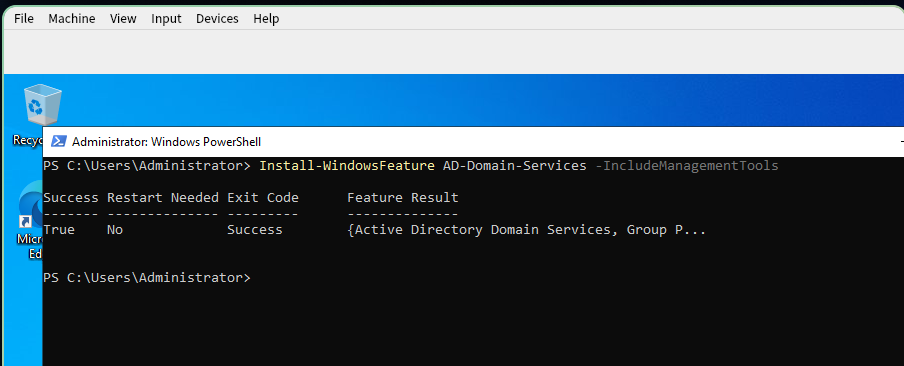 The role installed with no restart needed
| Part | Meaning |
|---|---|
Install-ADDSForest | Creates a new forest, which is the top-level container of an AD environment, with its first domain and first domain controller. |
-DomainName "lab.internal" | The name I chose. It is hard to change later, so I decided it before this step. |
-DomainNetbiosName "LAB" | The short name used in logins such as LAB\Administrator. |
-InstallDns | Installs DNS on the server. Active Directory finds everything through DNS. |
The command asks for a Directory Services Restore Mode password, an emergency recovery login. Keep it somewhere safe, because you cannot recover the domain controller’s directory without it.
 The confirmation prompt before the domain controller is created and the server restarts
After the restart, the login screen offers LAB\Administrator.
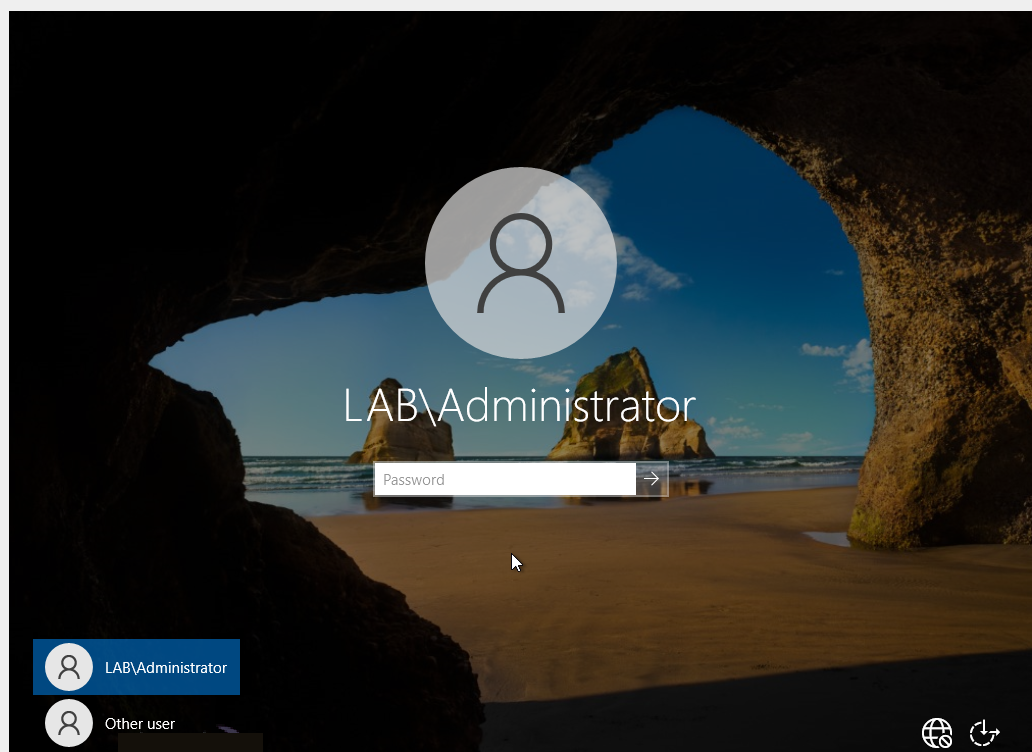 The domain login screen
Step 3: Checking the domain
I ran the standard health check and a few direct tests:
1
2
3
4
dcdiag /q
nslookup lab.internal
net share
Get-DnsServerForwarder
nslookup lab.internalreturned10.0.10.10, so DC01’s own DNS answers for the domain.net sharelisted NETLOGON and SYSVOL, the shares that clients use to get logon scripts and Group Policy.- DC01’s DNS forwarder was already set to
10.0.10.1, so names outside the domain resolve through pfSense.
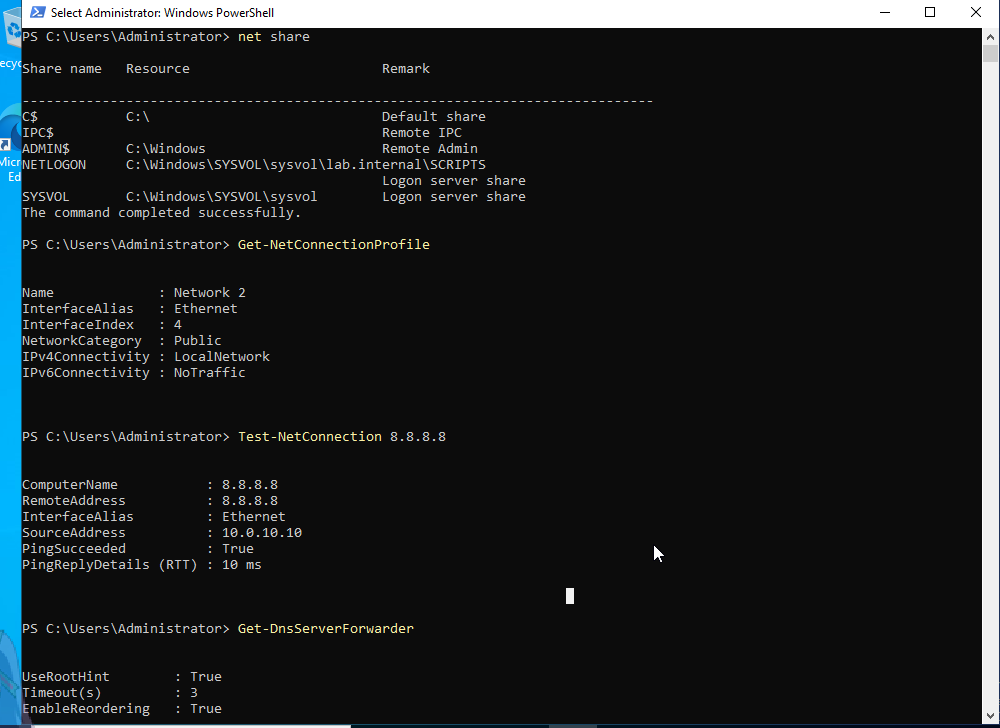 SYSVOL and NETLOGON shared, and the network profile result discussed below
dcdiag /q printed only failures, and one test failed: DFSREvent. It reports warning or error events in the last 24 hours after SYSVOL was shared, and says SYSVOL replication problems may cause Group Policy problems.
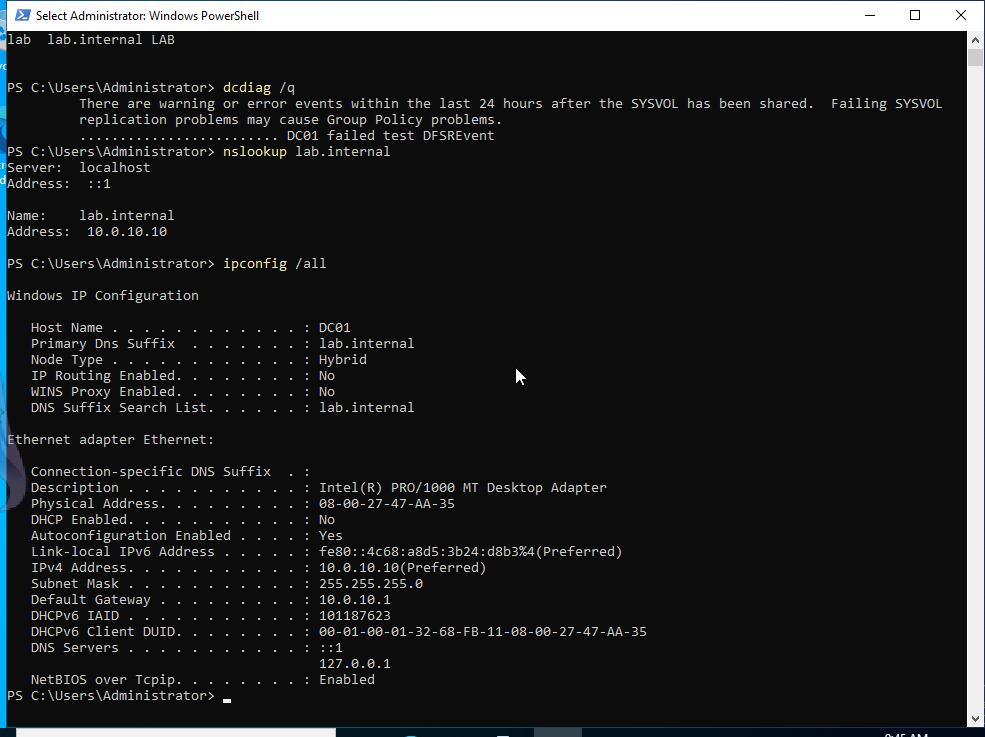 The one failed test on a freshly promoted domain controller
I did not look into the DFS Replication event log, so I treat this as an unresolved but low-risk warning. This is the only domain controller, so nothing is replicating anywhere. SYSVOL and NETLOGON are shared, which indicates SYSVOL is working. The test looks back 24 hours, so it may keep failing until the first-boot events age out. Reading that event log is on my list.
The network profile problem
After the domain was created, Get-NetConnectionProfile showed the network as Public with LocalNetwork connectivity, even though DC01 reached the internet.
1
Test-NetConnection 8.8.8.8     # PingSucceeded : True
My understanding of the cause: Network Location Awareness classifies the network early in boot, before Active Directory and DNS have started. DC01 is its own domain controller, so at that moment it cannot find a domain and settles on Public.
I tried to restart the service and it failed, because a dependent service would not stop:
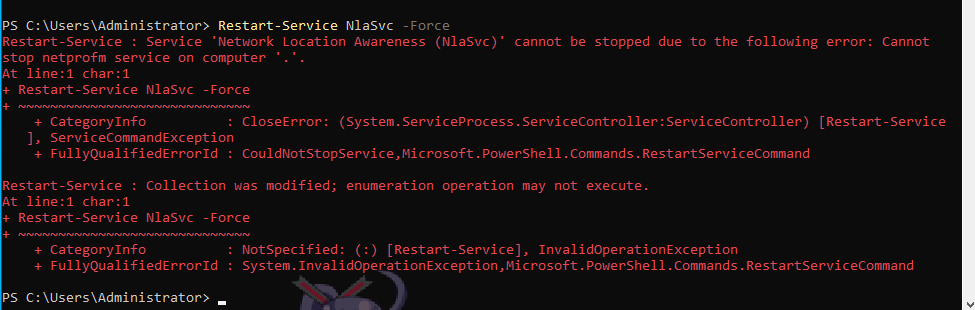 Restart-Service NlaSvc refused to run
Restarting the network adapter worked instead, and the profile became DomainAuthenticated:
1
2
Restart-NetAdapter -Name "Ethernet"
Get-NetConnectionProfile
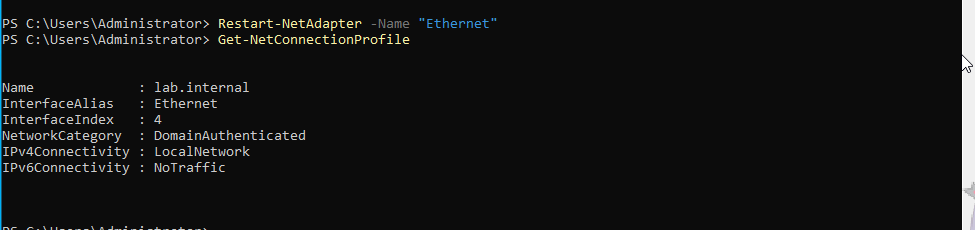 Network named lab.internal and categorised as DomainAuthenticated
After a full restart of the VM, the profile was Public again.
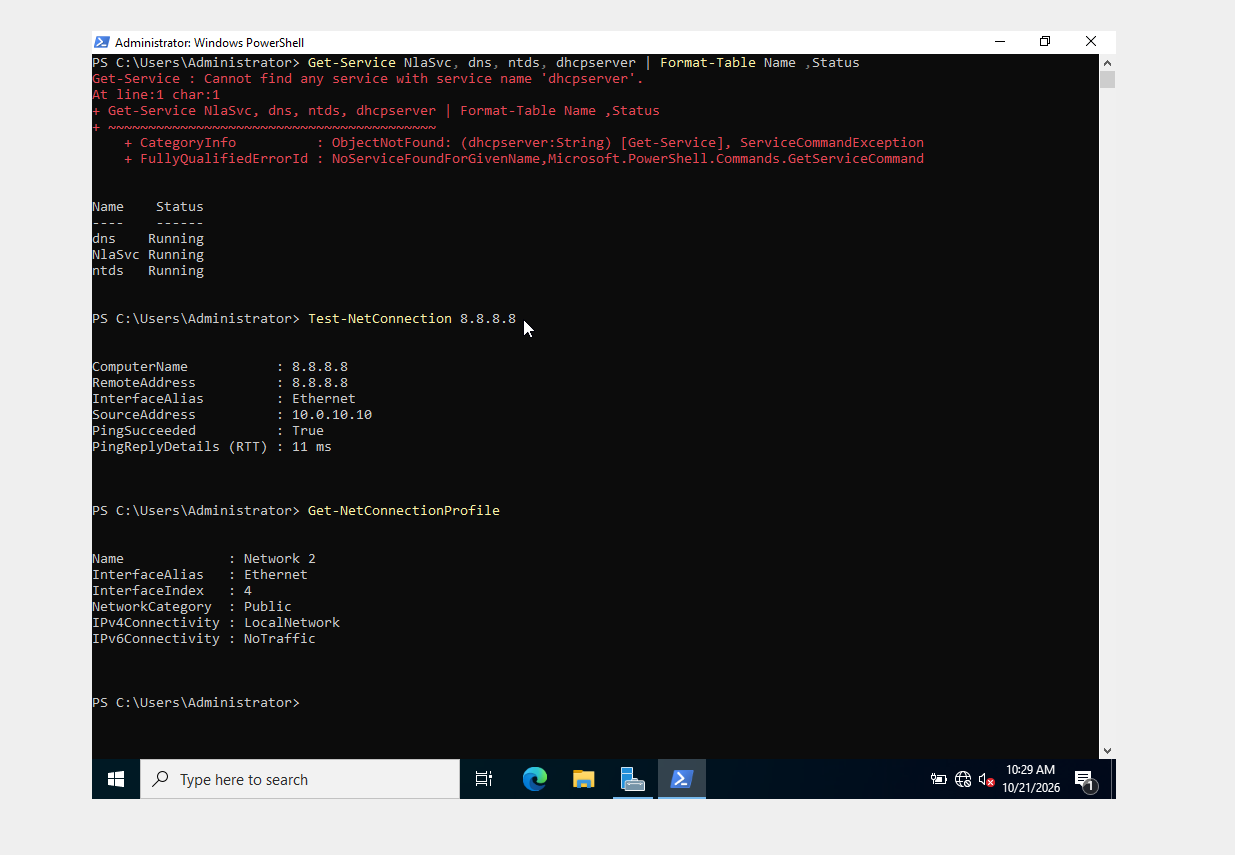 Public again after a reboot, while the ping still succeeds
I did not solve this yet, and I decided to defer it. It does not stop AD, DNS or DHCP from working. It matters for later: Windows Firewall rules from Group Policy apply per profile, so rules meant for the Domain profile would not apply to DC01 while it is on Public. I recorded it as an open item to resolve before the firewall hardening step.
Step 4: DHCP
pfSense’s DHCP server is off by design, so the domain controller hands out addresses:
1
2
3
4
5
Install-WindowsFeature DHCP -IncludeManagementTools
Add-DhcpServerInDC -DnsName "DC01.lab.internal" -IPAddress 10.0.10.10
Add-DhcpServerv4Scope -Name "LabClients" -StartRange 10.0.10.100 -EndRange 10.0.10.200 -SubnetMask 255.255.255.0 -State Active
Set-DhcpServerv4OptionValue -ScopeId 10.0.10.0 -Router 10.0.10.1 -DnsServer 10.0.10.10 -DnsDomain "lab.internal"
Get-DhcpServerv4Scope
| Command | Purpose |
|---|---|
Add-DhcpServerInDC | Authorises the server in Active Directory. An unauthorised DHCP server on a domain does not hand out addresses, which protects against rogue DHCP servers. |
Add-DhcpServerv4Scope | The pool 10.0.10.100 to .200. The fixed addresses sit outside it. |
Set-DhcpServerv4OptionValue | What each client receives: gateway 10.0.10.1, DNS 10.0.10.10, domain lab.internal. |
 The scope is active with an 8-day lease
Step 5: The first lease
I switched the Windows 11 client from its fixed address back to automatic and checked the result.
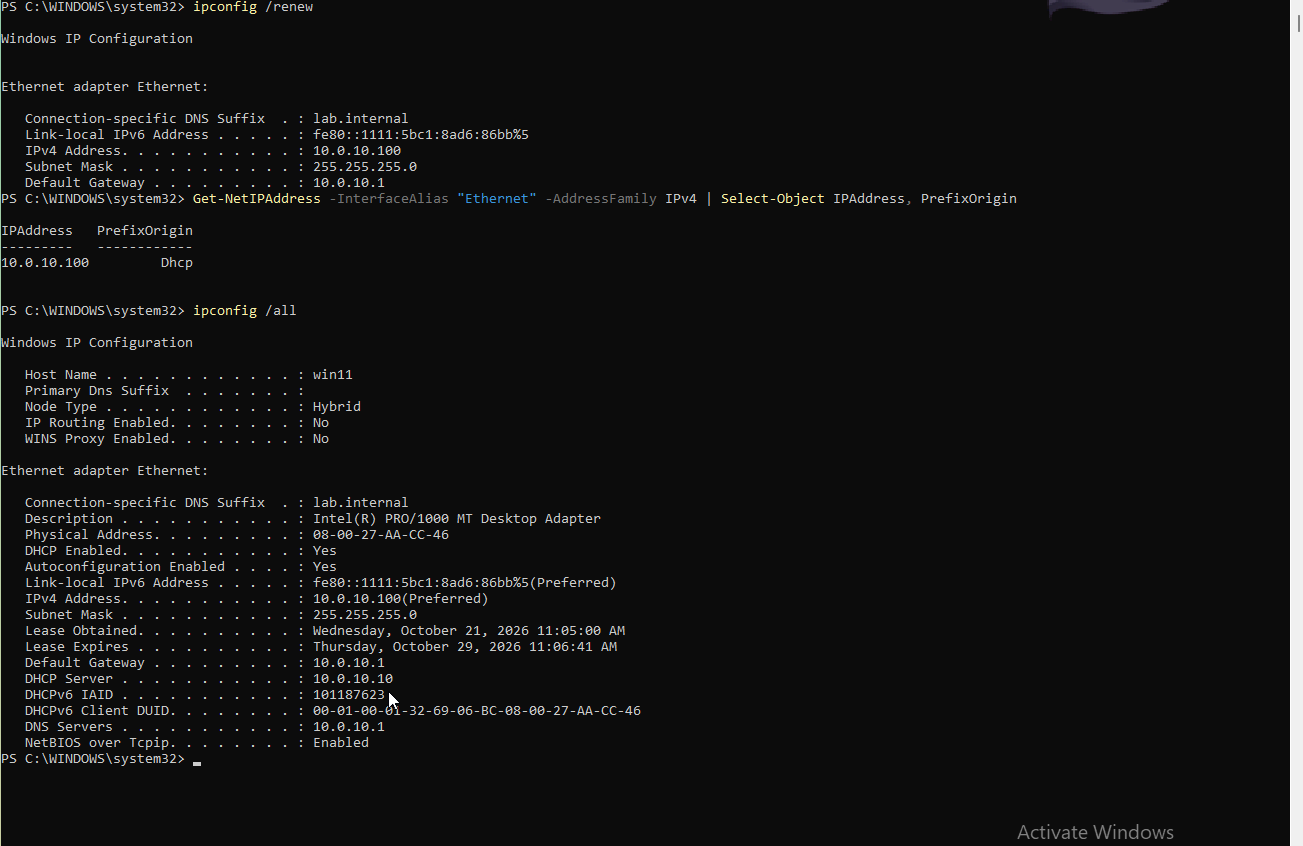 The client’s lease from DC01
- The address is
10.0.10.100andPrefixOriginsaysDhcp. - The DHCP Server line shows
10.0.10.10, so DC01 issued the lease, not pfSense. - The gateway is
10.0.10.1and the lease runs for 8 days.
One problem: the DNS server in this output is 10.0.10.1, which is pfSense, and not 10.0.10.10, which is DC01. The client needs DC01 as its DNS server to join the domain. The most likely explanation is that the fixed DNS setting from the earlier static configuration was left in place, so DHCP’s DNS option was ignored.
The fix
I reset the DNS setting to automatic and checked again:
1
2
Set-DnsClientServerAddress -InterfaceAlias "Ethernet" -ResetServerAddresses
ipconfig /all
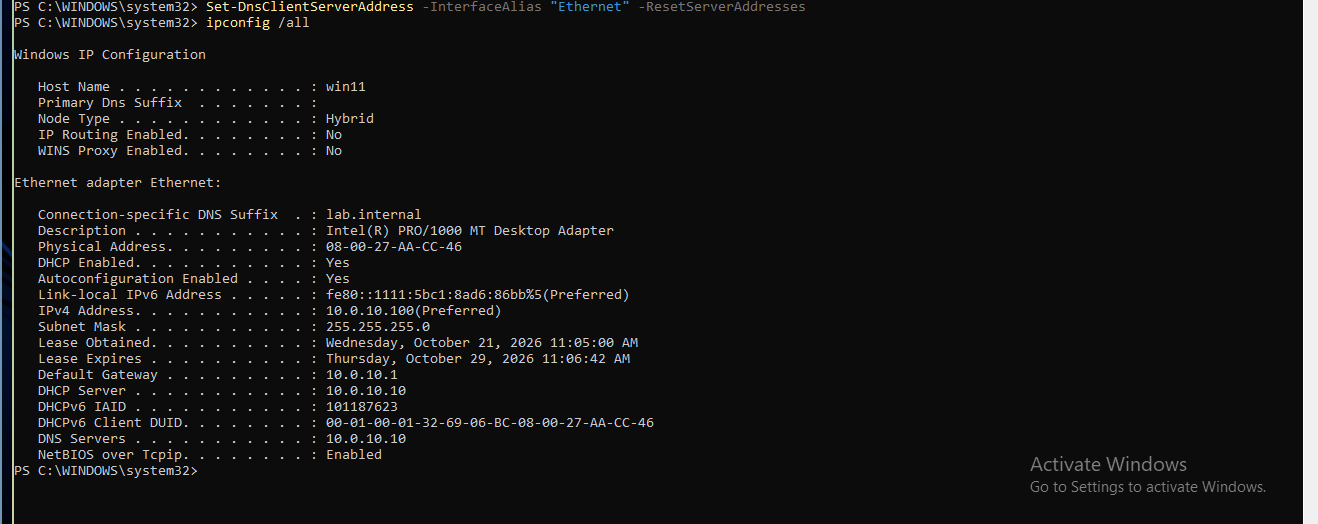 After the reset, the client’s DNS server is DC01
The DNS server line now shows 10.0.10.10, and the lease still comes from DC01. I have not yet tested name resolution for lab.internal from the client. That is the first thing to check before joining the domain.
Outcome
- The domain
lab.internalexists, with DNS answering for it and SYSVOL and NETLOGON shared - DHCP is authorised and active, and the Windows 11 client received a lease from DC01 with DC01 as its DNS server
- Three snapshots mark the clean states along the way
Open items
- DFSREvent warning from
dcdiag: read the DFS Replication log to confirm it is only first-boot noise - Public network profile on DC01 after a reboot: resolve before the firewall hardening step
What I would do differently
I would have read the win11 DNS line right after changing it to automatic and not after the lease. The wrong DNS value was visible in the very first output.
Next
Testing name resolution for lab.internal from the Windows 11 client, joining it to the domain, and creating the organisational units and 150 users with a PowerShell script.