Sending Attack Traffic Through the Firewall
Adding the pfSense rule and the host route that make my Arch machine reach the lab only by crossing the firewall, and finding the first logged packet as proof.
Overview
This is the third post in my Hybrid Identity Detection Lab project. In the first post I designed a network where my attacker machine can only reach the Active Directory lab through a firewall. In the second post I built that firewall.
Right now the two sides still cannot talk. This post makes the attacker path work and shows the firewall seeing the traffic.
The problem
Two things stand between my Arch host (10.0.66.2) and the lab zone (10.0.10.0/24):
- pfSense blocks everything that arrives on a new interface. The LAN has a built-in allow rule, but OPT1, the attacker side, has none.
- My host does not know where the lab zone is. It is connected to
10.0.66.0/24, so without a route it sends lab traffic to my real router.
Step 1: The firewall rule
In pfSense I added a rule under Firewall → Rules → OPT1:
| Field | Value | Reason |
|---|---|---|
| Action | Pass | |
| Interface | OPT1 | Rules apply to traffic entering an interface. |
| Protocol | Any | Open to start with. I will tighten it once I know which traffic I want to study. |
| Source | 10.0.66.2 | Only my attacker host, not the whole subnet. |
| Destination | 10.0.10.0/24 | The lab zone only, so the attacker zone gets no internet access through this rule. |
| Log | enabled | This is how the firewall records what happens. |
| Description | Arch attacker to lab zone |
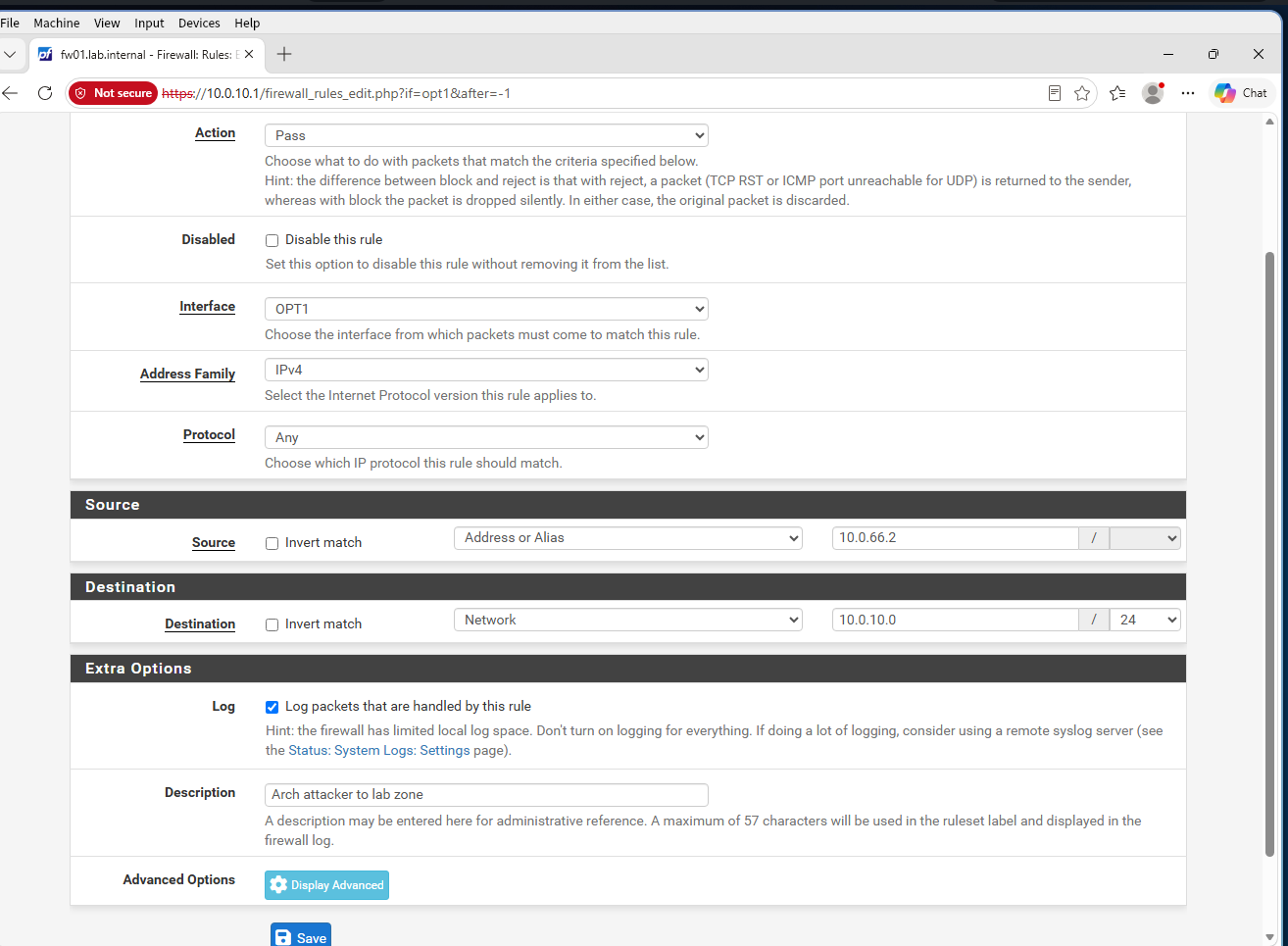 The OPT1 rule with logging enabled
Step 2: The route on the host
I told my host to send lab traffic to pfSense’s attacker-side address:
1
2
sudo ip route add 10.0.10.0/24 via 10.0.66.1
ip route | grep 10.0.10
The route list now shows 10.0.10.0/24 via 10.0.66.1 dev vboxnet1. This route disappears when the host reboots, so I will make it permanent later.
Step 3: Proving the traffic crosses the firewall
1
ping -c 3 10.0.10.1
 The route is added and three pings are answered
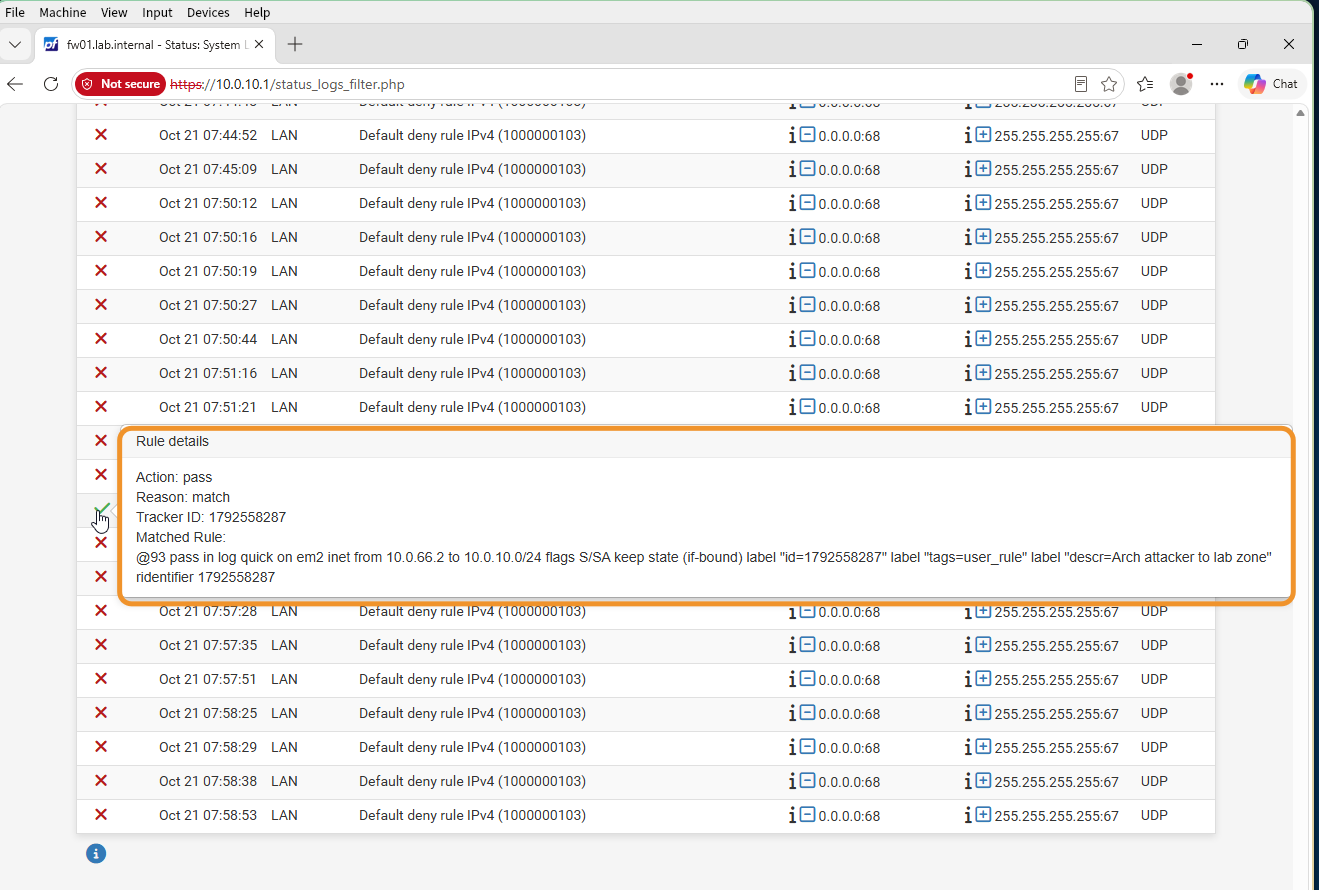
All three pings were answered. A reply on its own does not prove the packets went through pfSense, though, so I checked the firewall log under Status → System Logs → Firewall. The entry for my ping shows that it matched my rule:
1
pass in log quick on em2 inet from 10.0.66.2 to 10.0.10.0/24 ... descr=Arch attacker to lab zone
The log entry and its rule details: a packet from 10.0.66.2 entering on em2 and passing
em2 is the attacker-side interface, so this is the sensor point from the design working: traffic from the attacker enters the firewall on OPT1 and is recorded.
The ping replies have TTL 64. That is pfSense’s own starting value, and no router subtracted from it, because
10.0.10.1is the firewall’s own address on the lab side. The earlier test from the Windows client to the internet showed TTL 126, because those packets crossed two routers.
What else showed up in the log
The log is full of blocked entries on the LAN interface: UDP from 0.0.0.0 port 68 to 255.255.255.255 port 67. These are DHCP requests from a machine that has no address yet. pfSense blocks them for two reasons: its DHCP server is off by design, and the source address 0.0.0.0 is not inside the LAN network, so the LAN allow rule does not match.
I expect they come from the domain controller VM, which is still using DHCP. I will confirm that when it gets its fixed address, and the entries should stop.
What this does not prove yet
- I only reached the firewall’s own lab-side address. I have not yet reached the domain controller or the Windows client from the attacker side. Windows Firewall blocks incoming pings by default, so a ping to them would fail even with a working network, and I will test with a service port instead.
- The rule allows every protocol from my host to the whole lab zone. That is deliberate for now, and I will review it once I know which traffic I want to study.
Outcome
- A logged pass rule that lets only my attacker host into the lab zone
- A host route that forces lab traffic through pfSense
- A firewall log entry showing a packet entering on the attacker interface, which is the evidence the later detections will build on
What I would do differently
I would run ip route get 10.0.10.1 before the ping. It shows which gateway and interface the host will use, and it would have confirmed the route before testing it.
Next
Giving the domain controller its fixed address, 10.0.10.10, and installing Active Directory.